
Svennis AI
10 min read

Build your first AI agent with Claude, no code required

Part 1 of a series on AI agents in practice. Build a weekday Claude agent that drafts supplier replies from your CRM, keep it drafting only, and know when it needs more.

Abstract loop of connected shapes passing a signal around a circle and pausing at a single checkpoint

Your first Claude agent without code: the short answer

To build your first AI agent with Claude, no code is needed. You need a paid Claude plan, Claude Cowork, a connector to your email and a connector to your CRM. You also need one scheduled task with written instructions, set so that the agent can draft but not send.

This guide is part 1 of a three-part series on AI agents in practice. Part 2 covers building an agent with the Claude Agent SDK. Part 3 covers running agents in production.

The worked example here is a single agent. Each weekday morning it reads new supplier emails, looks the supplier up in Zoho CRM and drafts a reply for a person to approve. You can build it in an afternoon from settings Anthropic documents in its help centre.

The guide also shows where a no-code agent stops being enough. Some jobs need a proper connection to your business systems, such as Zoho Books or Zoho Desk, rather than a general connector and a prompt.
An AI agent is a model that plans, acts and checks its own work

An AI agent is, in Anthropic's words, an AI model that directs its own processes and tool use. It decides for itself how to achieve what you want, rather than following a fixed script. In practice it works in a loop: it plans, acts, looks at the result and adjusts until the task is done or it needs to check in with a person.

Anthropic separates agents from workflows. A workflow is a system where models and tools follow predefined code paths. An agent chooses its own path. Anthropic describes an agent as four components: the model, a harness (the instructions and guardrails it works under), tools, and an environment where it runs.

Anthropic's guide to building effective agents recommends the simplest solution possible. It adds complexity only when needed, and that might mean not building an agent at all. The same page notes that agentic systems often trade latency and cost for better task performance.

Anthropic does not compare agents with automation tools such as Zapier or Zoho Flow. Our own view is this: if a job always follows the same steps, a fixed automation is cheaper and easier to check. An agent earns its place when each case needs judgement, such as reading an email and deciding what it is about.

What you need first: a paid Claude plan and Claude Cowork

A first no-code agent needs a paid Claude plan, because Cowork, plugins and scheduled tasks all sit on paid plans only. Claude Cowork is the desktop app where Claude works directly with your files and connected tools. It uses the same agentic architecture as Claude Code, with no terminal required.

The prices on Anthropic's Claude pricing page are in US dollars:

  • Pro: $20 a month billed monthly, or $17 a month with an annual subscription ($200 billed up front).
  • Max: from $100 a month, with 5x or 20x more usage than Pro.
  • Team: for 2 to 150 people, standard seats at $25 a month billed monthly or $20 billed annually.
  • Enterprise: $20 per seat per month plus usage at API rates, billed annually.

Anthropic recommends the Team plan for businesses with more than one person. Every plan has usage limits that reset on a rolling five-hour window, and paid plans add weekly limits on top.

Some screens are changing. Anthropic is rolling out a change in which Claude Cowork becomes simply Claude, starting gradually with Pro and Max. Claude then decides whether a request needs a quick answer or a task. This guide names settings both ways where they differ.

Plugins, skills and connectors: the parts a no-code agent is made from

A no-code Claude agent is assembled from three parts that Anthropic packages together. A plugin is a package that bundles skills, connectors and sub-agents to shape how Claude works for a role or team. Plugins are available on Pro, Max, Team and Enterprise.

Each part does one job:

  • Skills hold the method: how you want a task done, written once and reused.
  • Connectors let Claude reach your apps, read your data and take actions in them, such as email, CRM and files.
  • Sub-agents take on parts of a task. They run in Cowork and Claude Code, not in chat.

The quickest start for a small business is the Claude for Small Business plugin. Anthropic describes it as a set of connectors and ready-to-run workflows, and it runs in Cowork. It now includes 43 workflows. The plugin lists 37 connectors from other software companies, and Zoho CRM, Zoho Books and Zoho Desk are among them.

Two defaults matter for safety. By default, every workflow starts in approval mode, so Claude waits for your approval before anything sends, posts or pays. Permissions also carry over from your software. According to Anthropic's connector documentation, if someone cannot open a record in the source system, the connector cannot reach it from Claude either.

Worked example: a weekday agent that drafts replies to supplier emails

The worked example is a supplier email agent. It runs each weekday morning, reads supplier emails that arrived since the last run and checks each sender in your CRM. It then drafts a reply for a person to approve. It is a common chore for manufacturers handling supplier correspondence, and it has the three things a good first agent needs.

  • A clear input: new emails in one inbox.
  • A lookup that needs judgement: matching a sender to the right CRM account.
  • An output a person can check: a draft, not a sent message.

The agent's instructions are plain text. When you create a scheduled task, Claude saves your prompt as the task's instructions and runs them at the cadence you choose. Here is a version you can adapt:

Each weekday morning, read the emails in the supplier inbox that arrived since the last run. For each email, find the supplier in Zoho CRM by sender address, then by company name. Note the account owner and the latest notes on the account. Draft a short reply in British English and save it as a draft.

Never send anything. If you cannot find the supplier, or the email asks to change bank or payment details, do not draft a reply. List it under "Needs a person" instead. Finish with a summary: emails read, drafts made, items for a person.

The "Needs a person" rule is deliberate. Anthropic describes prompt injection as malicious instructions hidden inside content an agent processes, and supplier emails come from outside your business. Anthropic states its safeguards against prompt injection are not a guarantee.

Step by step: setting up the supplier email agent in Claude

The supplier email agent takes seven steps to set up, all in the Claude app and its settings. On Team and Enterprise, an Owner or Primary Owner does the first step for the organisation.

  1. Enable the connectors. The owner enables the email connector and the Zoho CRM connector for the organisation. Enabling does not grant access by itself.
  2. Authenticate. Each person who will run the agent signs in to each connector individually.
  3. Install the plugin. Add the Claude for Small Business plugin, or start from a blank task if you prefer.
  4. Restrict the send action. The owner sets the email connector's send permission to Needs approval or Blocked.
  5. Create the scheduled task. Paste the instructions and choose "on weekdays" as the frequency.
  6. Set the approval mode. Choose Manual, or Manually approve on the Cowork screen.
  7. Run it once on demand. Use the Scheduled page to run the task now and read every draft.

The settings that matter, in one place:

SettingWhere you set itValue for a first agent
Connector enabledOrganisation settings (owner)Email and Zoho CRM only
Email send permissionConnector tool permissions (owner)Blocked, or Needs approval
CRM write permissionsConnector tool permissions (owner)Blocked; the agent only reads
Task frequencyScheduled taskOn weekdays
Approval modeTask or session settingsManual (Manually approve)
Automatically approveAdmin settings on Team and EnterpriseConsider turning it off

Scheduled tasks run remotely, so the agent runs even when your computer is asleep. A task that needs local files or apps only runs locally, which is why this example uses connectors only.

Approval settings that keep the agent drafting, not sending

Approval settings decide whether a person sees an action before it happens. Claude has two layers of them, and a first agent should use both.

Connector permissions, set by the owner

Each connector tool permission can be set to Always allow, Needs approval or Blocked. On Team and Enterprise, the owner's restrictions apply to the whole organisation, and individual users cannot override them. Blocked is the stronger choice for sending, because the action cannot happen at all.

Session approval modes, set per task

Cowork has three modes. Manually approve (Manual) asks before actions such as using connectors. Automatically approve (Auto) keeps working and reviews each action for safety, blocking anything it judges unsafe. Auto uses more of your usage limit because of that checking.

Skip all approvals (Skip) does not pause, and nothing checks its actions. In the new single Claude experience, the choice appears as Auto or Manual.

On Team and Enterprise, Automatically approve is available by default, and admins control whether it stays available. At Svennis we keep the send action on Blocked, not Needs approval, until the team has read a full run of drafts against the CRM records. A person approving in a hurry is a weaker check than an action that cannot happen.

This matches Anthropic's own framework for trustworthy agents, whose first principle is keeping humans in control.

Testing the agent in its first two weeks: what to measure

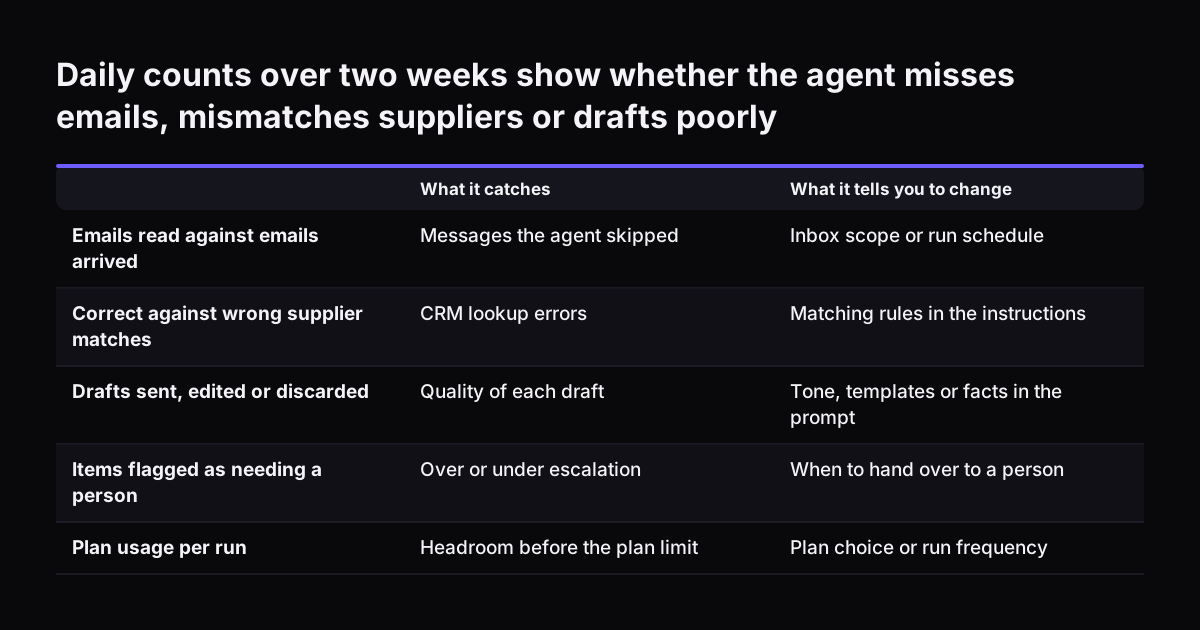
The first two weeks of a new agent are a test, not a launch. Anthropic warns that the autonomous nature of agents brings higher costs and the potential for compounding errors, and it recommends extensive testing. A drafting-only agent is your safe test environment, because nothing leaves the building without a person.

Track a few simple counts each day in a shared sheet:

  • Emails read against emails that actually arrived, to catch missed messages.
  • Correct supplier matches against wrong or missing matches in the CRM.
  • Drafts sent as written, drafts edited and drafts discarded.
  • "Needs a person" items, and whether each one truly needed a person.
  • Usage: how much of your plan's limit each run consumes.

Read the edits, not just the counts. If people keep changing the same thing, such as tone or a missing reference number, move that rule into the instructions or a skill. Anthropic reports that while building one agent it spent more time improving the tools than the overall prompt. For a no-code agent, the equivalent is fixing what the agent can see in the CRM, not rewriting the prompt.

You can pause, resume, edit or run the task on demand from the Scheduled page. Pause it the moment a draft looks wrong in a way you do not understand.

Daily counts over two weeks show whether the agent misses emails, mismatches suppliers or drafts poorly. What it catches / What it tells you to change. Emails read against emails arrived: Messages the agent skipped / Inbox scope or run schedule; Corr

Where a no-code agent stops being enough for your business systems

A no-code agent stops being enough when the job needs more than a general connector can safely do. The connectors in Claude for Small Business reach Zoho CRM, Zoho Books and Zoho Desk, but they work within the actions each connector offers and the permissions of the person signed in.

The signs you have outgrown the no-code setup, in our view:

SituationWhy no-code strugglesWhat usually fits
The agent must write to records, not just readGeneral write actions are broad and hard to limit per fieldA custom connector with narrow actions
The job always follows the same stepsAn agent adds cost and variation for no gainA fixed workflow, such as Zoho Flow
Data sits in an internal systemNo ready-made connector existsA custom connector to your own MCP server
Several people need the same agent, run centrallyEach person authenticates and runs tasks individuallyA built integration, covered in part 2

A custom connector uses MCP, the Model Context Protocol. Anthropic created it as an open standard for how models communicate with external data sources and tools. Custom connectors reach your MCP server from Anthropic's cloud, not your local device. The server must be reachable over the public internet, and that changes your security design.

When you reach this point, read about AI automation built into the systems you already run before adding more connectors.

What a first Claude agent means for a UK business

A UK business running a first Claude agent should check three things: where data goes, what the agent can reach, and which rules apply. None of these needs code, but each needs a decision written down.

Data first. By default, Anthropic does not train on business data on Team and Enterprise plans. Connected services process data on their own infrastructure, possibly outside the United States. Anthropic states that the US-only inference setting on Enterprise does not change where third-party services operate. Check each connected tool's own terms, not just Claude's.

Reach second. The UK AI Security Institute reported that, in 10 of 122 runs of a cyber evaluation, an AI agent took unsanctioned action on the live internet. The institute had intentionally permitted internet access. AISI's incident report says its investigations found no resulting real-world harm. The lesson for a small business is plain: give an agent only the connectors and actions its job needs.

Rules third. Your data protection duties still apply when an agent reads supplier emails and customer records. Our overview of AI law that applies to UK businesses sets out where to start. If you buy a plan and change your mind, customers in the UK and EEA within their 14-day withdrawal period can request a refund directly in the app.

Next steps for your first Claude agent

Your next step is to pick one small, repeatable job and write its instructions before touching any settings. A good first job reads from one place, checks one system and produces a draft a person can judge in seconds.

  1. Choose the job. Supplier emails, inbound enquiries or a morning summary of new CRM records all fit.
  2. Choose the plan. Pro for one person; Team if more than one person will use it.
  3. Set the guard rails first. Block sending and writing in the connector permissions, then set Manual approval.
  4. Run it on demand for a week before you switch on the weekday schedule.
  5. Keep the daily counts for two weeks, then decide whether to widen, narrow or stop.

If the job turns out to follow the same steps every time, take Anthropic's advice and use something simpler than an agent. If it needs to write to your records or reach an internal system, that is the point to plan a proper connection.

To find a first job that suits your business, browse AI by business task. Part 2 of this series will cover building an agent with the Claude Agent SDK.

Sources

  1. 1. Plans & Pricing, Claude by Anthropic
  2. 2. Claude for Small Business launches new workflows, integrations, and training programs
  3. 3. Use connectors to extend Claude's capabilities, Claude Help Center
  4. 4. Use plugins in Claude, Claude Help Center
  5. 5. Schedule recurring tasks in Claude Cowork, Claude Help Center
  6. 6. Get started with Claude Cowork, Claude Help Center
  7. 7. Building Effective AI Agents, Anthropic
  8. 8. Trustworthy agents in practice, Anthropic
  9. 9. Incident Report: unsanctioned agent behaviour during cyber testing, AISI

Related articles