
Svennis AI
9 min read

Claude for Small Business: the new workflows explained, and how to connect them to Zoho

Claude for Small Business now has 43 workflows and works with Zoho CRM, Zoho Books and Zoho Desk. This guide covers the install, the workflows worth running first and a first-week plan.

Abstract cover with linked nodes feeding a central panel that pauses each flow before it moves on

Claude for Small Business: what it is and what the September 2026 update added

Claude for Small Business is a plugin for Claude Cowork that runs ready-made business workflows through the tools a small company already uses. The 15 September 2026 update brought it to 43 workflows and 27 new integrations. The plugin now works with 37 partner connectors, including Zoho CRM, Zoho Books and Zoho Desk.

Anthropic first launched the plugin in May 2026 with 15 ready-to-run workflows. Those covered finance, operations, sales, marketing, HR and customer service. According to Anthropic's September announcement, it has been installed more than 900,000 times since that launch.

The new integrations include Shopify, Salesforce, TikTok, Atlassian, Zoom, Xero, Gusto, Square, Stripe and Zapier. For a company that runs on Zoho, the important change is simpler. Your CRM, your helpdesk and your accounts can now feed the same workflows directly.

Anthropic describes its typical user plainly. Most owners using the plugin run businesses of under ten people, and many work solo. This guide explains the workflows that suit a UK or European company of that size. It also shows how to connect them to the Zoho data you already keep.
Plugins, skills, connectors and Cowork: the four terms behind the workflows

Four terms explain how Claude for Small Business works. Once you know them, the setup screens make sense.

  • Claude Cowork is the desktop app where Claude works directly with your files and connected tools. The Small Business plugin runs there, not in the browser chat.
  • A plugin bundles a set of skills and the connectors those skills read from. Small Business is one plugin.
  • A skill is a set of instructions for a specific task, such as closing the month or answering a new lead. Anthropic's pages also call these workflows.
  • A connector is the link between Claude and one of your tools, such as Zoho Books or Microsoft 365. It lets a skill read from and stage work in that tool.

You start a skill in one of two ways. You type / in the chat bar and pick it from the list. Or you describe the job in plain English and Claude picks the skill that fits.

Connectors are optional for many jobs. Anthropic says every workflow runs from a spreadsheet, a PDF or a forwarded email, and gets better as you connect tools. That matters if one of your systems has no connector yet. If you already group your own instructions in Claude, our guide to Claude Projects and Skills for a small team shows how those relate to plugin skills.

Installing the Small Business plugin in the Claude desktop app, step by step

You install the Small Business plugin from inside Cowork in the Claude desktop app, and it needs a paid plan. The Claude Academy install guide lists Pro, Max, Team or Enterprise as the qualifying plans.

The install takes five steps:

  1. Open the Claude desktop app on a paid plan and go to Cowork.
  2. Click Customize in the left sidebar.
  3. Under Plugins, click +.
  4. Find Small Business and click Install.
  5. Run /smb-onboard, or type "set me up".

The last step matters most. /smb-onboard is the setup skill. It asks about your business, helps you connect your tools and saves that context, so every other skill knows it. Answer its questions carefully. A vague description of your business gives you vague briefs later.

The tools each skill reads from are defaults, not fixed choices. When you customise the plugin, you can point a skill at the payment processor, accounting tool or CRM you actually use. Zoho Books, Zoho CRM and Zoho Desk already appear among the default tools that several skills read from. If Cowork itself is new to you, our setup guide to Claude Cowork for your business covers the app first.

The Claude for Small Business workflows worth running first in a UK or EU company

The workflows that travel best to a UK or European company are the ones about customers, cash and routine admin. The tax and payroll workflows are more tied to US rules. The table sets out the named workflows, what each does according to Anthropic's pages, and how well it fits a company outside the US.

WorkflowWhat it doesFit for a UK or EU company
/monday-briefThe weekly brief; all 37 partner connectors are eligible to feed itGood first run
/speed-to-leadAnswers new inquiries on nights and weekends with real meeting times and logs them to your CRMGood, with Zoho CRM connected
crm-autopilotKeeps the CRM up to date from emails, calls and meetings, and flags deals gone quietGood
/close-monthReconciles your books against your payment processors and writes the close packet for your accountantGood, reviewed by your accountant
cash-flow-snapshotBuilds a 30/60/90-day forecast with the tight weeks flaggedGood
/plan-payrollChecks you have the cash, chases overdue invoices and prepares the run for you to submitCheck against your own payroll process
/tax-prepHandles quarterly taxes or 1099sPoor; 1099s are a US form

Two growth workflows are also named: /proposal-builder for proposals and /social-content-engine for social content. About a third of owners on Anthropic's spring tour asked for help with leads, inbound inquiries and proposals. That makes the lead and proposal workflows a sensible second step after the Monday brief.

You choose when each workflow runs. The options Anthropic names are every Monday, at month-end, or when a new lead comes in.

Worked example: one question answered from Zoho CRM, Zoho Books and Zoho Desk

Connecting all three Zoho systems lets you ask one question and get an answer that draws on each of them. Anthropic uses exactly this case in its September announcement.

Take a ten-person services firm that keeps deals in Zoho CRM, invoices in Zoho Books and support tickets in Zoho Desk. The owner wants to know which customers need attention before a quarterly review. Setup and use run like this:

  1. Run /smb-onboard and describe the firm: what it sells, who its customers are, and which tools hold which data.
  2. Connect the Zoho CRM, Zoho Books and Zoho Desk connectors when onboarding asks for your tools.
  3. Ask in plain English: "Which customers have an open deal, an overdue invoice and an unresolved support ticket?"
  4. Claude reads the deals, the invoices and the tickets, and returns one list with the reason each customer appears.
  5. Follow up with a request to draft a check-in email for each account. In approval mode, the drafts wait for you.

Two limits apply. First, Claude reads only what your own account in each tool can read. If the person asking cannot see the finance data in Zoho Books, neither can Claude. Second, some features depend on your plan in the connected tool. Anthropic notes that staging sends may need a higher tier in that tool.

For a deeper connection to your CRM, our step-by-step guide to connecting Claude to Zoho CRM with MCP covers the technical route.

Tools without a connector: build-connector and build-agent

Two skills in Claude for Small Business cover what the ready-made workflows leave out. build-connector links a tool that has no official connector. build-agent turns a manual task into a new workflow.

build-connector

build-connector connects Claude to a tool that does not yet have an official connector. It works through the Claude connector directory and Zapier. That suits a company whose stock or booking system sits outside the 37 partner connectors. Every extra link is also a new route for data, so decide who approves it before anyone builds one.

build-agent

build-agent turns a task you do by hand every week into a workflow. You can then run it by name or on a schedule. Good candidates are jobs with a fixed shape: the same inputs, the same checks and the same output each time. Examples are a weekly overdue-invoice chase or a Friday summary of new Zoho Desk tickets.

Start with a task you already do well by hand. You can then judge whether Claude's version is right. A task nobody has defined clearly will not improve by being automated.

If the tool you need has a plugin of its own, our guide to the Claude plugins directory for a small team helps you choose where to start.

Approval mode and permissions: what stops Claude acting on its own

Approval mode is the default state of every workflow: Claude drafts and stages the work, and nothing sends, posts or pays until you approve it. Anthropic states this on the plugin page, in the install guide and in the launch announcement.

In practice, approval mode shapes each financial workflow. Payroll is set up for you to submit. Bills wait for your approval before they are paid. Claude does not file anything for you.

Once you trust a workflow in approval mode, you can let it run on its own schedule. That decision is yours, workflow by workflow.

Permissions are the second control. Connectors keep each person's existing access. Anthropic's example is that an employee who cannot see something in Intuit QuickBooks or Google Drive today cannot see it through Claude either. The same principle applies to your Zoho systems.

That makes your permission settings in Zoho the real boundary. At Svennis, before we connect Claude to a client's Zoho systems, we review the roles and profiles of each person who will use it. Claude inherits whatever access those people already have, including access nobody meant to grant.

A tidy role structure in Zoho therefore matters more than any setting in Claude. Fix over-broad access first, then connect.

Plans and prices for Claude for Small Business, all in US dollars

Claude for Small Business is available on every paid Claude plan, and Anthropic recommends the Team plan for businesses with more than one person. All prices on Anthropic's pricing page are in US dollars.

PlanWho it is forPrice
ProOne person$17 a month billed annually ($200 up front), or $20 billed monthly
MaxOne person needing more usageFrom $100 a month, with 5x or 20x the usage of Pro
Team, standard seatTeams of 2 to 150$20 per seat a month billed annually, or $25 billed monthly
Team, premium seatHeavier users on the Team plan$100 per seat a month billed annually, or $125 monthly; 5x standard usage
EnterpriseLarge businesses$20 per seat a month plus usage at API rates, billed annually

For a ten-person company on standard Team seats, that works out at $200 a month billed annually, or $250 billed monthly. Every plan has usage limits that reset on a rolling five-hour session window. Paid plans add weekly limits on top.

Plan for those limits if several people will run long workflows at once. Month-end close and a full CRM review are the likely peaks.

What Anthropic says about training on your business data, plan by plan

Anthropic's small business page says that by default it does not train on business data on Team and Enterprise plans. Its exact words are: "By default, we don't train on your business data on Team and Enterprise plans. You own your inputs, outputs, and data."

Read that wording closely. It names Team and Enterprise. The page also has a shorter, unqualified answer, so check Anthropic's terms and Trust Center for the plan you choose before connecting business data. For a company that will connect its CRM, invoices and support tickets, the Team plan is the one where the stated default applies.

Anthropic lists further security points on the same page:

  • Its security controls are audited to the SOC 2 Type II standard.
  • Your data is encrypted in transit and at rest.
  • Connected tools keep their existing permissions.

Data security is the most common doubt. Half the owners Anthropic surveyed on its spring tour named it as their biggest hesitation about using AI. Before you connect anything, decide which data staff may pass to Claude. Write it down, and make sure the Zoho roles match what you wrote.

What is US-shaped about Claude for Small Business, and what it means for a UK or European company

Claude for Small Business was built with US owners in mind, and several parts show it. A UK or European company can still use the core workflows. It should know where the product does not fit.

  • Tax: /tax-prep speaks of quarterly taxes and 1099s, a US form. Keep your VAT and year-end work with your accountant.
  • Training: the free half-day workshops of the autumn tour, run with a training partner, are in ten US cities, from Boston to Raleigh. The AI Fluency course, co-presented with PayPal, is online.
  • Billing: every price is in US dollars, so your monthly cost moves with the exchange rate.
  • Data location: the pricing page offers US-only inference at 1.1x token pricing. The pages we used list no UK or EU equivalent from Anthropic itself.

Anthropic's pricing page says customers in the EEA and the UK can ask for a refund in the app within 14 days. The legal right to cancel belongs to consumers, so a company buying seats should treat this as Anthropic's policy, not a right. Expect any refund to be reduced in line with use.

The data location point matters most for a company handling personal data. Check your obligations before connecting customer records. Our overview of AI law in the UK and what applies to your business is a starting point.

A first-week plan for a ten-person company adopting Claude for Small Business

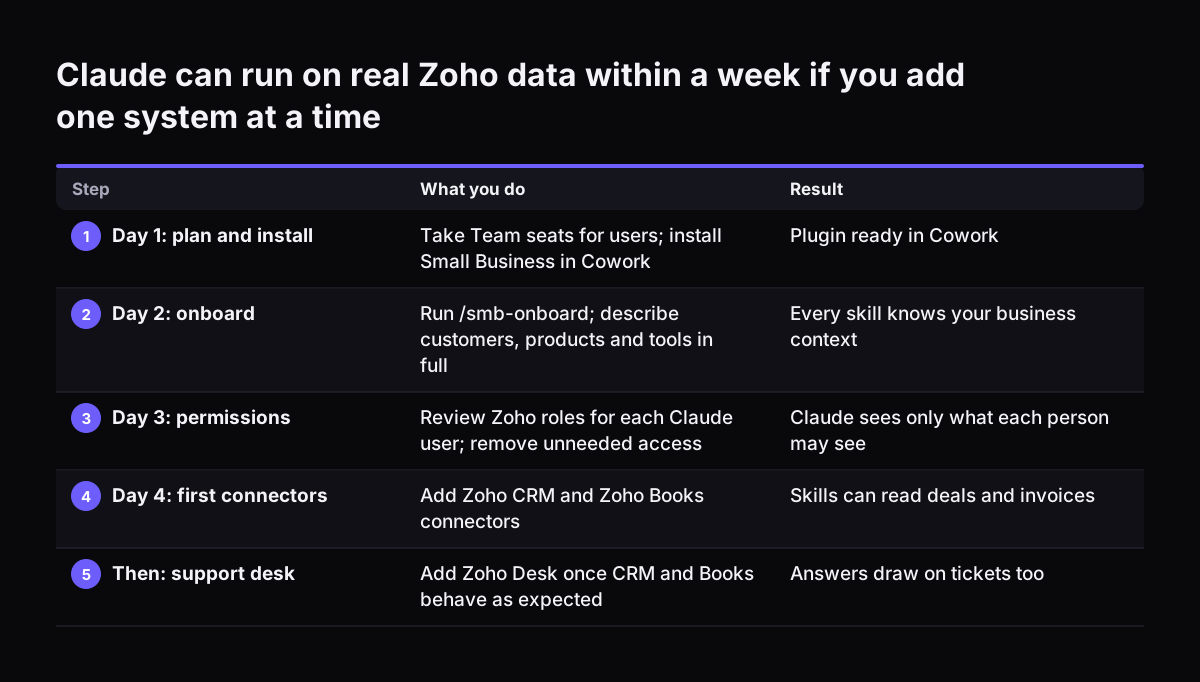
A ten-person company can have Claude for Small Business running on real data within one week. Add one workflow at a time after that. The order below keeps risk low and shows value early.

  1. Day 1: choose the plan and install. Take Team seats for the people who will use the plugin. Install Small Business from Customize and Plugins in Cowork.
  2. Day 2: onboard. Run /smb-onboard with the person who knows the business best. Describe your customers, products and tools in full.
  3. Day 3: check permissions. Review Zoho roles for everyone who will use Claude. Remove access nobody needs.
  4. Day 4: connect the CRM and the accounts tool. Add Zoho CRM and Zoho Books first. Add Zoho Desk once those two behave as expected.
  5. Day 5: run /monday-brief. Read the brief against what you already know about the week, and correct anything it gets wrong.

From the second week, add one workflow a week. /speed-to-lead and crm-autopilot are good next choices, followed by /close-month with your accountant watching. Keep each in approval mode until it has run correctly several times.

If you want Claude working deeper inside your Zoho CRM than the plugin allows, start with our guide to connecting Claude to Zoho CRM with MCP. Our post on putting Claude for small business inside your tools covers the wider picture.

Claude can run on real Zoho data within a week if you add one system at a time. What you do / Result. 1. Day 1: plan and install: Take Team seats for users; install Small Business in Cowork / Plugin ready in Cowork; 2. Day 2: onboard: Run /smb-onboar

Sources

  1. 1. Claude for Small Business launches new workflows, integrations, and training programs
  2. 2. Introducing Claude for Small Business
  3. 3. Small Business plugin
  4. 4. How to install and use the Claude for Small Business plugin
  5. 5. Claude for Small Business
  6. 6. Plans & Pricing

Related articles