
Svennis AI
10 min read

Building an AI agent with the Claude Agent SDK for real business systems

A practical guide to building an AI agent with the Claude Agent SDK: install it, connect your CRM through MCP, lock down permissions and keep a person in charge of risky actions.

Abstract cover showing a looping path passing through a narrow gate before reaching an outer ring

Building an AI agent with the Claude Agent SDK: the short answer

To build an AI agent with the Claude Agent SDK, you install the SDK in Python or TypeScript and give the agent a short list of tools it may use. You then connect your business systems through MCP and send every risky action to a person for approval. This guide is part 2 of our three-part series on AI agents in practice.

Part 1 covers building a first agent without code. Part 3 covers running agents in production. This part is for a company with a developer or a technical partner who can write and run a small program.

An agent is an application that completes a task by planning its own steps and calling tools that read files, run commands or change data. The Claude Agent SDK is Anthropic's library for building such agents on top of Claude Code. It was called the Claude Code SDK until Anthropic renamed it in September 2025.

The rest of this guide follows one path. You install the SDK, run a minimal agent, and connect it to a CRM. Then you decide which actions run on their own and which wait for a human. Finally, you rebuild the supplier-email agent from part 1 in code.
What the Claude Agent SDK provides: tools, loop, permissions and terms

The Claude Agent SDK gives you the same tools, agent loop and context management that power Claude Code, programmable in Python and TypeScript. Anthropic describes it as a library that runs the Claude Code binary. You do not write the tool loop yourself. The SDK handles orchestration, tool execution, context management and retries, and your code reads the stream of messages.

The SDK includes these building blocks:

  • Built-in tools for reading, editing and searching files and running commands.
  • Hooks, which run your own code at key points in the agent's lifecycle.
  • Subagents, which work in their own isolated context windows and send back only relevant information.
  • MCP servers, which connect external tools and data sources.
  • Permissions, which decide what the agent may do without asking.
  • Sessions, which keep a conversation's state so work can resume.

The agent works in a loop that Anthropic describes on its Claude Agent SDK engineering blog: gather context, take action, verify the work, repeat. When the context fills up, the SDK's compact feature summarises earlier messages automatically.

The terms matter before you ship anything. Use of the SDK is governed by Anthropic's Commercial Terms of Service, and you authenticate with an API key. Unless Anthropic has approved it, you may not offer claude.ai login or its rate limits in your product. You may call your product "YourAgentName Powered by Claude", but not "Claude Code" or "Claude Code Agent".

Installing the Agent SDK and setting your API key

Installing the Claude Agent SDK takes one command and one environment variable. You need Python 3.10 or later, or Node.js 18 or later, plus an Anthropic account. The Python package is claude-agent-sdk on PyPI. The TypeScript package is @anthropic-ai/claude-agent-sdk on npm.

Run these two lines in a terminal on the machine that will run the agent. Replace the placeholder with the key from your Anthropic account.

pip install claude-agent-sdk
export ANTHROPIC_API_KEY=your-api-key

Three details trip people up at this step.

  • The SDK reads the key from the environment of the process that runs the agent. It does not load .env files automatically, so your start-up script must set the variable.
  • Both SDKs bundle a native Claude Code binary, so most installs need nothing else. If pip installs the source distribution instead of a platform wheel, for example on ARM64 Windows, no binary is bundled.
  • By default the agent can reach files in the folder it runs from and every subfolder below it.

That last point is a scoping decision, not a technicality. Run the agent from a dedicated folder that holds only what it needs. Never run it from a home directory or a shared drive full of contracts and payroll exports.

A minimal Claude Agent SDK agent in Python, line by line

The minimal Claude Agent SDK agent below is Anthropic's quickstart example. It asks Claude to review a file called utils.py for bugs and fix them. Save it as agent.py in your dedicated folder, next to a utils.py, and run it with Python.

import asyncio
from claude_agent_sdk import query, ClaudeAgentOptions, AssistantMessage, ResultMessage


async def main():
    # Agentic loop: streams messages as Claude works
    async for message in query(
        prompt="Review utils.py for bugs that would cause crashes. Fix any issues you find.",
        options=ClaudeAgentOptions(
            allowed_tools=["Read", "Edit", "Glob"],  # Auto-approve these tools
            permission_mode="acceptEdits",  # Auto-approve file edits
        ),
    ):
        # Print human-readable output
        if isinstance(message, AssistantMessage):
            for block in message.content:
                if hasattr(block, "text"):
                    print(block.text)  # Claude's reasoning
                elif hasattr(block, "name"):
                    print(f"Tool: {block.name}")  # Tool being called
        elif isinstance(message, ResultMessage):
            print(f"Done: {message.subtype}")  # Final result


asyncio.run(main())

The query function is the main entry point. It starts the agent loop and returns messages as Claude works. The prompt says what you want done, and Claude chooses which tools to use.

Two lines decide how much freedom the agent has. allowed_tools lists tools that run without asking. permission_mode="acceptEdits" auto-approves file edits inside the working folder.

These are the lines you would change first. The quickstart pairs tool sets with purposes. Read, Glob and Grep give read-only analysis. Adding Edit lets the agent change files.

Adding Bash as well gives full automation. For a first test against anything real, start with the read-only set and remove acceptEdits.

Connecting the agent to your CRM through an MCP server

An MCP server is how the Claude Agent SDK reaches your business systems. The Model Context Protocol (MCP) is an open standard for connecting AI agents to external tools and data sources. A server can run as a local process, connect over HTTP, or run inside your own SDK application.

The example below is Anthropic's, and it connects to a public documentation server. Save it as a second script and run it the same way.

import asyncio
from claude_agent_sdk import query, ClaudeAgentOptions, ResultMessage


async def main():
    options = ClaudeAgentOptions(
        mcp_servers={
            "claude-code-docs": {
                "type": "http",
                "url": "https://code.claude.com/docs/mcp",
            }
        },
        allowed_tools=["mcp__claude-code-docs__*"],
    )

    async for message in query(
        prompt="Use the docs MCP server to explain what hooks are in Claude Code",
        options=options,
    ):
        if isinstance(message, ResultMessage) and message.subtype == "success":
            print(message.result)


asyncio.run(main())

In practice you replace the server name claude-code-docs and its URL with your company's CRM or email MCP server, for example one in front of Zoho CRM. The prompt changes to a business task. MCP tools follow the naming pattern mcp__<server-name>__<tool-name>.

The allowed_tools line needs the most thought. The wildcard in the example auto-approves every tool on that server. On a CRM server, that can include tools that update or delete records. For business systems, list only the specific read tools by their full names.

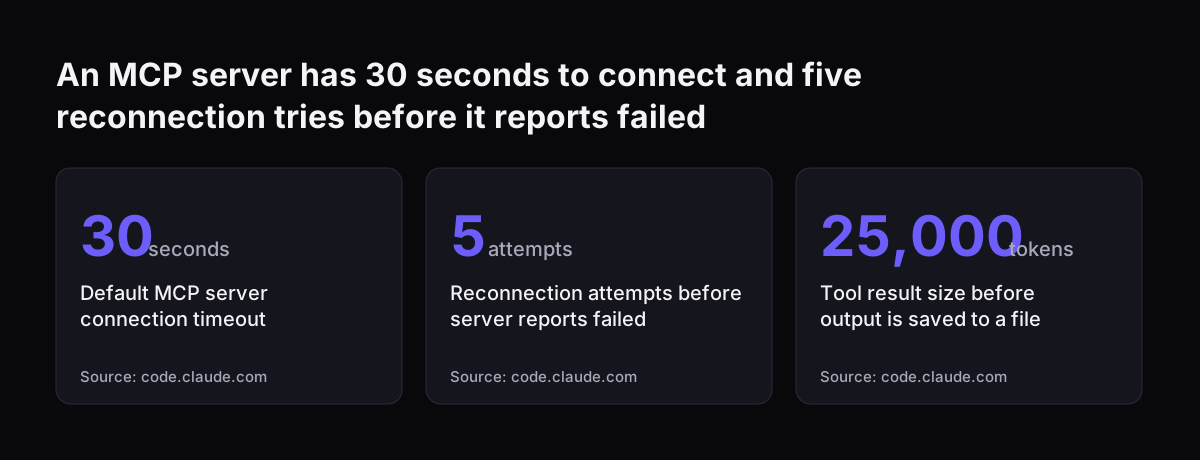
Three rules from the Agent SDK MCP documentation help here. MCP tools need explicit permission before Claude can call them. acceptEdits does not auto-approve MCP tools. An unanchored entry such as mcp__* is ignored with a warning and approves nothing.

An MCP server has 30 seconds to connect and five reconnection tries before it reports failed: Default MCP server connection timeout 30 seconds, Reconnection attempts before server reports failed 5 attempts, Tool result size before output is saved to
Source: code.claude.com

Permission modes, the check order, and the mode to avoid

A permission mode is a setting that controls how much human oversight the agent works under. The Claude Agent SDK checks every tool request in a fixed order: hooks, deny rules, ask rules, the permission mode, allow rules, and finally your canUseTool callback. The first step that decides the request wins.

The modes compare as follows for work against live business systems:

ModeWhat runs without askingUse against customer or financial data
defaultOnly tools in your allow rules; the rest go to canUseToolYes, with a short allow list
acceptEditsFile edits and filesystem operations inside the working folderOnly if the agent edits local files
planNothing that edits files; Claude explores and plansYes, for a first dry run
dontAskOnly allowed tools; every other request is deniedYes, for unattended read-only jobs
bypassPermissionsAlmost everything, without promptsNo

Do not use bypassPermissions for anything that touches customers or money. The Agent SDK permissions documentation states that allowed_tools does not constrain this mode. Setting allowed_tools=["Read"] with bypassPermissions still approves every tool, including Bash, Write and Edit.

Deny rules are the one control that holds in every mode. A matching deny rule blocks the tool even in bypassPermissions. A bare-name deny rule goes further and removes the tool from the request, so Claude never sees it.

Human approval before a tool runs, with the canUseTool callback

The canUseTool callback is the function that asks a person before the Claude Agent SDK runs a tool. It receives the tool name and its input, and execution pauses until it returns allow or deny. It also fires when Claude has clarifying questions through the AskUserQuestion tool.

The TypeScript fragment below is the decision part of Anthropic's example. It goes inside the options you pass to query. Your app shows the proposed action to a person and stores their answer in response.

canUseTool: async (toolName, input) => {
  // ... show the proposed action to a person and read the answer ...
  if (response.toLowerCase() === "y") {
    return { behavior: "allow", updatedInput: input };
  } else {
    return { behavior: "deny", message: "User denied this action" };
  }
}

Change two things for real use. Replace the "y" check with however your approver answers, such as a button in an internal tool. Rewrite the deny message so it says why. Claude sees that message and may adjust its approach.

One rule shapes the whole design: the callback never fires for auto-approved tools. Anything in allowed_tools, or approved by the mode, skips the person entirely. So the actions you want reviewed must stay off the allow list.

Approvals often take hours, not seconds. The callback can stay pending indefinitely, but a PreToolUse hook can return a defer decision instead. The process then exits and resumes later from the saved session. A PermissionRequest hook can notify the approver by Slack, email or push.

Worked example: the supplier-email agent rebuilt in the SDK

The supplier-email agent from part 1 reads incoming supplier emails, checks each supplier's record in the CRM and drafts a reply. In the Claude Agent SDK, it becomes one script with two MCP servers. One server connects to your mailbox, whether that is Zoho Mail or another service. The other connects to your CRM.

The prompt describes the job in business terms: read unread supplier emails, find the supplier in the CRM, and draft a reply that uses the agreed terms. The permission set then decides what the agent may do alone. The table below is the checklist we would apply to each tool on the two servers.

ActionWhere it goesResult
Read emails, search CRM recordsallowed_tools, by full tool nameRuns without asking
Create a draft replyallowed_toolsRuns; nothing leaves the building
Send an emailLeft off the allow listGoes to canUseTool for a person's decision
Send, where the agent should only draftDeny ruleBlocked in every mode
Update or delete a CRM recordDeny ruleBlocked in every mode

Choose between the two sending options by how much you trust the drafts. Start with the deny rule, so the agent can only draft. Move to approval once staff have checked enough drafts to trust them.

When Svennis sets up agents like this against a client's Zoho system, we give read tools first and keep every tool that sends, deletes or changes a record off the allow list. The fault we most often find in reviews is a server-wide wildcard that quietly auto-approves a write tool nobody meant to switch on.

Running it yourself or on Claude Managed Agents, and what each costs

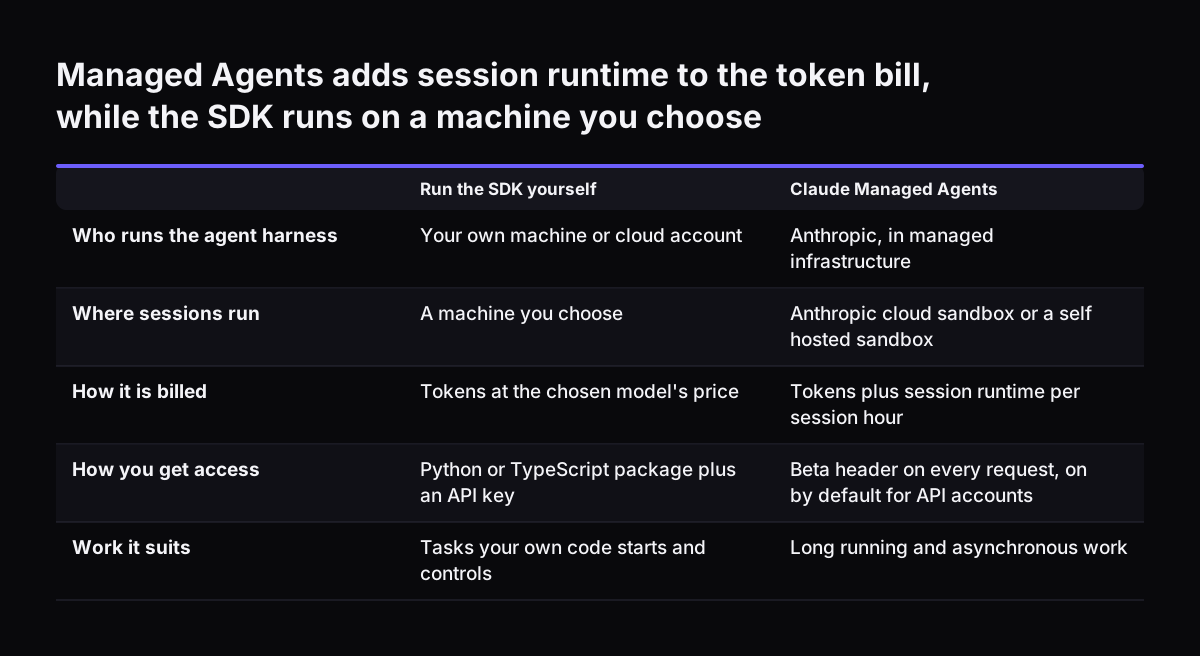
You can run a Claude Agent SDK agent on your own machines, or use Claude Managed Agents, Anthropic's hosted alternative. Managed Agents is a pre-built agent harness that Anthropic runs in managed infrastructure, suited to long-running and asynchronous work. Sessions run in an Anthropic-managed cloud sandbox or a self-hosted sandbox on your own infrastructure.

Managed Agents is in beta, and every request needs the managed-agents-2026-04-01 beta header. It is billed on tokens plus session runtime at $0.08 per session-hour. It is not currently eligible for zero data retention, because it stores state by design.

If your data policy requires zero retention, run the SDK yourself and agree a zero data retention arrangement with Anthropic first. Running the SDK on your own machine does not by itself change how Anthropic retains prompts and responses. Its standard retention policy applies unless you have a zero data retention arrangement.

Token prices are the same either way. From the Anthropic pricing page, in US dollars per million tokens:

ModelInputOutputContext window
Claude Haiku 4.5$1$5200K tokens
Claude Sonnet 5$2$101M tokens
Claude Opus 5.5$4$201M tokens
Claude Fable 5.1$10$501M tokens

Anthropic's models overview suggests starting with Opus 5.5 for most workloads if you are unsure. It reserves Fable 5.1 for demanding reasoning and long-horizon agentic work. Haiku 4.5 is due for retirement no sooner than 15 October 2026, so check that date before building on it. The Batch API halves input and output prices for work that can wait. A prompt cache hit costs 10% of the standard input price.

Managed Agents adds session runtime to the token bill, while the SDK runs on a machine you choose. Run the SDK yourself / Claude Managed Agents. Who runs the agent harness: Your own machine or cloud account / Anthropic, in managed infrastructure; Whe

What this means for a UK or European company

For a UK or European company, the main decisions are where the agent runs, which contract covers it, and what data it touches. The Claude Agent SDK runs as a library on a machine you choose. That keeps the harness, the working folder and the logs under your control. The prompts and every record the agent reads still go to Anthropic or your cloud provider for processing. You therefore need a data processing agreement with them, and a check on where that processing happens.

The SDK also authenticates through Amazon Bedrock, Claude Platform on AWS, Google Cloud's Agent Platform and Microsoft Foundry. If your company already buys cloud services from one of these, your developer can use that route. It may fit your existing procurement and data processing agreements better. Check with the provider what each route means for where your data is processed, because Anthropic's documentation in this guide does not promise a region.

Data protection shapes the permission design, not just the contract. An agent that reads a CRM reads personal data about customers and suppliers. Keep its tool list to the records the task needs, and keep sending and deleting behind a person or a deny rule. Our overview of AI law in the UK and what applies to your business covers the legal side.

Budget in the right currency. Anthropic's prices are in US dollars and exclude tax. Your monthly cost will move with the exchange rate as well as with usage.

Next steps: scope one agent, then plan for production

The practical next step is to scope one agent for one task, with a named person who approves its actions. Pick a task with a clear input and a clear output, such as supplier emails or quote requests. Then work through this order:

  1. Install the SDK in a dedicated folder and run the quickstart agent.
  2. Connect one MCP server with read-only tools listed by full name.
  3. Add deny rules for every tool that sends, deletes or changes a record.
  4. Run in plan mode first, then default with the canUseTool callback.
  5. Review a batch of the agent's proposed actions before you allow any of them to run alone.

For task ideas, our guide to building a quote generator with Claude and Zoho shows one scoped job end to end. Our page on AI by business task lists others by department. The post on building AI into the systems you already use explains why the agent should live inside your CRM rather than beside it.

Part 3 of this series covers running agents in production. If you want help designing the permissions and approvals for your own systems, see how we approach AI automation for growing businesses.

Sources

  1. 1. Agent SDK overview - Claude Code Docs
  2. 2. Quickstart - Claude Code Docs
  3. 3. Connect to external tools with MCP - Claude Code Docs
  4. 4. Configure permissions - Claude Code Docs
  5. 5. Handle approvals and user input - Claude Code Docs
  6. 6. Building agents with the Claude Agent SDK
  7. 7. Claude Managed Agents overview - Claude Platform Docs
  8. 8. Pricing - Claude Platform Docs
  9. 9. Models overview - Claude Platform Docs

Related articles