Skip to content
SVENNISAIWe speak Claude.
Blog · Claude desktop

Claude desktop for business: install, admin settings and what it adds over the browser

A guide for UK owners and IT leads: system requirements, plan availability, managed deployment with MSIX and PKG installers, and what the desktop app adds over the browser.

9 min read

Book a 30-minute call · with a Claude Certified Architect from our team.

Article · 9 min read
Abstract cover with a framed window shape linked by flowing lines to smaller nested panels

Claude desktop for business: what it is and when you need it

Claude desktop is worth installing when your team needs Cowork, local files or desktop extensions, because the browser cannot run those features. The app is available on every plan, including Free. Cowork and the Code tab need a paid plan. In a business, the IT lead should install it through managed deployment with single sign-on rather than leaving each person to download it.

The Claude desktop app is Anthropic's installable application for macOS, Windows and Linux (beta) that puts chat, Cowork and Claude Code in one window. Claude Code sits in the Code tab, and Cowork handles Dispatch and longer agentic work. Your account, conversations and projects are the same ones you see in the browser.

This guide is for owners and IT leads who want to run the desktop app as a managed tool, not as a personal download. It covers:

  • which plans include which features
  • the supported operating systems
  • how to download and install Claude desktop
  • what the app adds over the browser
  • what administrators control
  • where the data goes for a UK company

If you want the wider picture first, our plain guide to what Claude is and how its apps fit together covers the basics.
Which Claude plans include the desktop app, Cowork and the Code tab

Every Claude plan can use the desktop app, but the paid features are where the business value sits. Anthropic's download page says the apps are available on Free, Pro, Max, Team and Enterprise, and that some features need a paid plan. The install article in the Claude Help Center lists exactly which ones.

The table below compares the three plan groups on the features an operator asks about.

Feature in Claude desktopFreePro and MaxTeam and Enterprise
ChatYesYesYes
Claude Code (Code tab)NoYesYes
CoworkNoYesYes
Computer use (research preview, macOS and Windows)NoYesNo
Memory, default settingOnOnOff

Two rows surprise most business buyers. Computer use lets Claude open your apps and control your screen, and it is not available on Team or Enterprise plans. Memory is off by default for Team and Enterprise organisations, so an administrator decides whether to switch it on.

Since January 2026, every Team plan standard seat includes Claude Code access. Since February 2026, any organisation can buy an Enterprise plan directly on Anthropic's website without a sales conversation. For what each plan costs a company, see our guide to Claude for business, costs included.

System requirements for Claude desktop on macOS, Windows and Linux

Claude desktop runs on macOS 13 (Ventura) or higher and on Windows 10 or higher. Check these versions before you plan a rollout, because older laptops are the most common blocker. The macOS download is a universal build for Intel and Apple Silicon. The Windows download is for x64 processors.

Linux support is in beta. The supported systems are these:

  • Ubuntu 22.04 LTS or later, on x64 or arm64
  • Debian 12 (bookworm) or later, on x64 or arm64

Fedora and RHEL are not supported today. On distributions that are not Debian-based, Anthropic directs you to run the command-line version of Claude Code instead.

Extra requirements for particular features

Some features set a higher bar than the app itself. Computer use on macOS needs macOS 14 or later, plus Accessibility and Screen Recording permissions, and it is off by default. On Linux, Cowork needs hardware virtualisation (KVM) and QEMU with supporting packages. Anthropic notes that KVM is sometimes turned off in firmware.

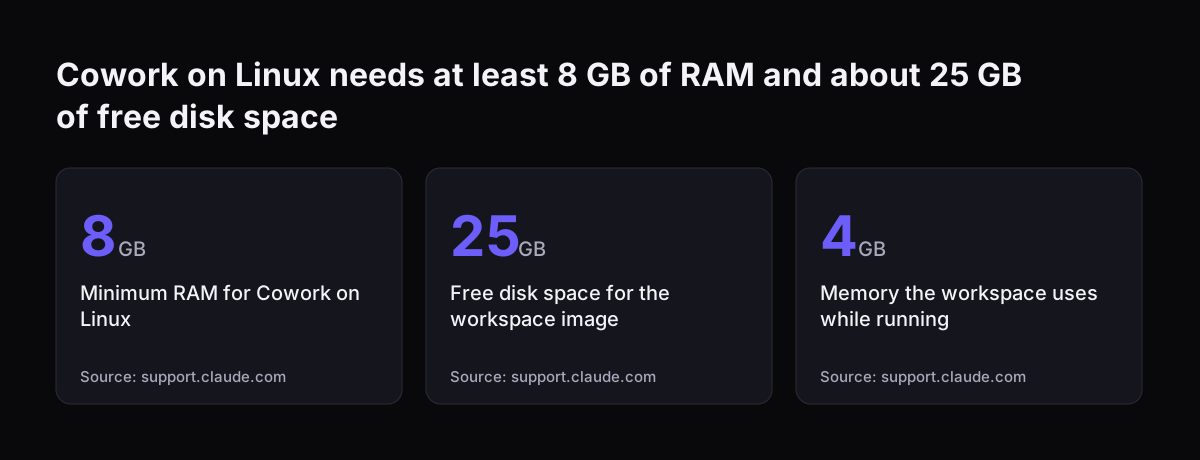
Cowork on Linux also needs at least 8 GB of RAM and about 25 GB of free disk space for the workspace image. The workspace uses 4 GB of memory while it runs. Computer use and dictation are not available in the Linux release.

Cowork on Linux needs at least 8 GB of RAM and about 25 GB of free disk space: Minimum RAM for Cowork on Linux 8 GB, Free disk space for the workspace image 25 GB, Memory the workspace uses while running 4 GB
Source: support.claude.com

How to download and install Claude desktop on Mac, Windows and Linux

You download Claude desktop from Anthropic's Claude download page, then sign in with the same account your team uses in the browser. For a single machine, that is the whole job. For a fleet of company laptops, use the managed installers described later in this guide.

The steps for one machine are short:

  1. Open the download page and choose the macOS build (the Claude for Mac download works on Intel and Apple Silicon) or the Windows build for x64.
  2. Run the installer on the computer.
  3. Sign in with your Claude account. On managed devices set up through enterprise deployment, SSO signs people in automatically.
  4. Open the Code tab or Cowork if your plan includes them.

The desktop app includes Claude Code. Nobody needs to install Node.js or the command-line tool to use the Code tab.

Linux installs behave differently

On Linux you install through Anthropic's apt repository or a downloaded .deb file. The apt repository is the better choice, because the app does not update itself on Linux. Updates arrive with the system's regular package updates. The app stores your sign-in in the desktop keyring, such as GNOME Keyring or KDE Wallet. People who sign in with an API key rather than a subscription or SSO need the command-line version instead.

What Claude desktop adds over the browser

Claude desktop adds features that need access to your computer, while everything account-based stays the same in both places. Your conversations, projects, memory and preferences sync across devices when you are signed in. Web-based connectors such as Google Drive and Slack work on web, desktop and mobile alike. A connector is a link that lets Claude work with one of your apps or databases.

The desktop app adds five things the browser does not offer:

  • Cowork, which runs multi-step tasks on your own machine.
  • The Code tab, with Claude Code built in, able to preview running servers and review local code changes.
  • Desktop extensions, which reach local file systems, browsers and native applications.
  • Claude in Chrome, included as a connector, which lets Claude navigate, click and fill forms in your browser from the desktop app once you turn it on.
  • Computer use, on Pro and Max only, which lets Claude open apps and control the screen.

Claude also picks the most precise tool first. It tries connectors, the shell, Claude in Chrome or similar tools before it falls back to computer use, which Anthropic describes as the broadest and slowest option.

For most office staff, Cowork and desktop extensions are the reasons to install. For developers, the Code tab matters most. The rest of this guide stays with the office side.

Cowork in Claude desktop runs tasks in an isolated virtual machine

Cowork is the part of Claude desktop that brings Claude Code's agentic abilities to a visual interface, so staff can hand off multi-step tasks without using a terminal. Cowork is available on Pro, Max, Team and Enterprise, through the desktop app only. It is the main reason a business installs the app rather than staying in the browser.

Cowork runs code in an isolated virtual machine on the user's computer. A virtual machine is a sealed, simulated computer inside the real one. File reads and writes are limited to the folders the user connects. Network access follows your egress settings, which control what the machine may reach on the internet.

Local sessions in Cowork stay on the device. That is different from ordinary chats, which sync to your account. For an operator, the practical rule is simple: connect only the folder a task needs, and keep sensitive folders out of Cowork unless the task requires them.

For uses, plans and data handling in more depth, see our explainer on Claude Cowork for UK firms. If you are ready to set it up, our step-by-step Cowork setup guide walks through a first task alongside your existing systems.

Desktop extensions are local MCP servers that admins can pre-approve

A desktop extension is a secure, installable package, similar to a browser extension, that connects Claude desktop to apps and data on the computer. Anthropic lists local files, calendars, email and messaging apps as examples. Technically, each extension is a local MCP server. MCP, the Model Context Protocol, is the open standard Claude uses to talk to other software.

Anthropic builds three safeguards into desktop extensions:

  • code signing, so you know who published the package
  • encrypted storage for sensitive data such as API keys
  • enterprise policy controls, so the organisation decides what is allowed

The policy controls matter most to an IT lead. With enterprise deployment, you can pre-approve which desktop extensions your team can access. Without it, each person chooses their own, and you lose track of what Claude can reach on each laptop.

Developers can list an extension in Anthropic's directory through a submission form. That means extensions in the directory come from many publishers. Treat each one like any other software you allow on company machines: check who made it, what it touches and whether a web connector would do the same job without local access.

Admin deployment for Claude desktop: installers, SSO, versions and settings

Claude desktop supports standard enterprise deployment with MSIX installers for Windows and PKG installers for Mac. Your device management tool can push these to company laptops like any other application. Anthropic names three controls that come with managed deployment.

  • Version control: you hold updates so you can test and approve them on your own timeline.
  • Automatic SSO: managed devices sign in through your identity provider without extra steps.
  • Extension pre-approval: you decide which desktop extensions the team may use.

Other settings sit at organisation level. Memory starts off on Team and Enterprise. An administrator can disable web search, and requests that use it then fail. On Enterprise, smart reports (in beta) analyse how the team uses Claude, what the work costs and where sessions run into friction.

Settings for the Code tab

If developers use the Code tab, two settings need a decision. Administrators can turn off auto mode, where a classifier approves actions in the background, with the disableAutoMode key in managed settings. Bypass permissions mode equals --dangerously-skip-permissions in the command line. Anthropic says to use it only in sandboxed containers or virtual machines.

At Svennis we pin the app version and pre-approve the extension list before the first seat goes live. Done afterwards, staff have usually installed extensions of their own that then have to be traced and removed.

Worked example: rolling Claude desktop out to an office on Claude Team

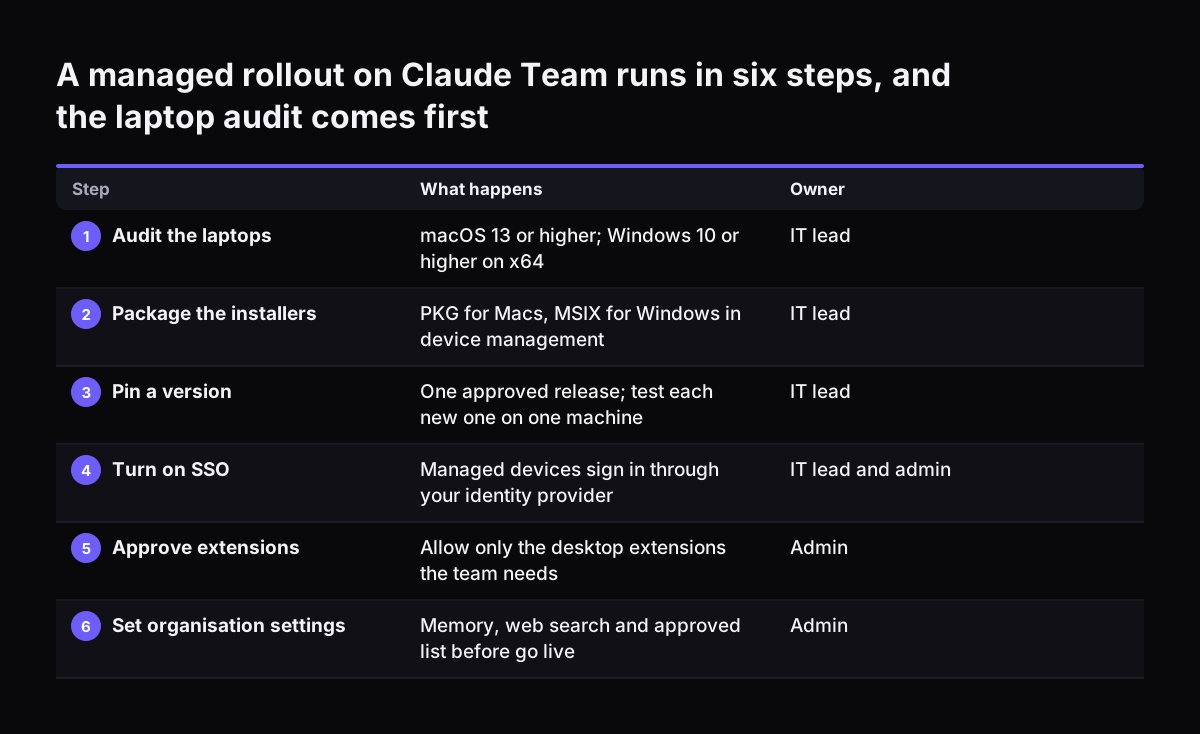
Take an office with a mix of Mac and Windows laptops, already paying for Claude Team, where staff use Claude in the browser. The goal is to give everyone Cowork on a managed install. These are the steps, in order, using the settings named in Anthropic's own pages.

  1. Audit the laptops. Macs need macOS 13 or higher. Windows machines need Windows 10 or higher on x64. Replace or exclude anything older.
  2. Package the installers. Load the PKG for Macs and the MSIX for Windows into your device management tool.
  3. Pin a version. Approve one release for the whole office. Test each new release on one machine before you approve it.
  4. Turn on SSO for managed devices so nobody signs in with a personal account.
  5. Pre-approve extensions. Start with only those one process needs, and add more on request.
  6. Decide on memory. It starts off on Team. Leave it off until your AI policy says what Claude may remember.
  7. Brief the staff. Explain that Cowork only sees the folders they connect, and that computer use is not available on Team.

Staff then open Cowork, connect the folder for their first task and work as before in chat. Their browser conversations and projects are already there, because they sync with the account.

If your company already pays for seats that sit idle, our Claude Relaunch service for paid seats starts from this kind of managed rollout.

A managed rollout on Claude Team runs in six steps, and the laptop audit comes first. What happens / Owner. 1. Audit the laptops: macOS 13 or higher; Windows 10 or higher on x64 / IT lead; 2. Package the installers: PKG for Macs, MSIX for Windows in

Where your data goes when UK staff use Claude desktop

Claude desktop sends chats to your Claude account, which syncs across devices, while Cowork's local sessions stay on the computer. That split decides what you need to check. Files a Cowork task opens are limited to the connected folders. Anything typed into an ordinary chat is handled like a browser conversation.

For where Anthropic stores that data, the clearest UK-specific document in our sources is Anthropic Ireland Limited's listing on the government's G-Cloud 15 framework. The listing names the United Kingdom, the European Economic Area and other locations as data storage and processing locations. It does not limit storage to the UK. Treat personal data in chats as a transfer outside the UK, and confirm the transfer safeguards in your plan's terms before staff put personal data into chats.

The same listing gives points worth recording in your supplier file:

  • Anthropic states it holds ISO 27001:2022, SOC 2 Type II, CSA STAR Level 2 and ISO 42001.
  • The listing says Anthropic deletes all copies of customer data within 30 days of contract termination or expiry, except where law requires retention.

Companies that want model traffic to run through a cloud provider they already contract with have another route. Anthropic documents using the desktop app with Amazon Bedrock, Google Cloud's Agent Platform, Microsoft Foundry or an LLM gateway. For the legal side, see our overview of AI law in the UK and what applies to your business.

Next steps for rolling out Claude desktop in your company

Start with the laptops and the plan, then the settings, then the first task. A short checklist keeps the order right:

  1. List every laptop's operating system and processor against the requirements above.
  2. Confirm everyone who needs Cowork is on Pro, Max, Team or Enterprise.
  3. Decide whether you deploy with MSIX and PKG installers, or allow individual downloads for a small trial.
  4. Set memory, web search and the approved extension list before the first seat goes live.
  5. Pick one repeated task for Cowork and connect only the folder it needs.
  6. Check the data terms for your plan and record them in your supplier file.

The desktop app becomes more useful once Claude can reach your business programs, not just local folders. For a program such as Zoho CRM, we build a connector, an MCP server, a plugin or a skill for each connection. We show you the options with their cost, and you choose.

Our work runs in four steps: a Workshop, then Pilot Claude A (an AI agent on Claude for one process) or Pilot Claude B (Claude Team for the whole team), then the department Activation, then monthly operations. For what each step and each plan costs, start with our Claude for business guide.

Sources

  1. Install Claude Desktop, Claude Help Center
  2. Download Claude, Anthropic
  3. Desktop application, Claude Code Docs
  4. Get started with the desktop app, Claude Code Docs
  5. Claude Desktop on Linux (beta), Claude Code Docs
  6. Release notes, Claude Help Center
  7. Models overview, Claude Platform Docs
  8. Anthropic Frontier AI on the UK Digital Marketplace (G-Cloud 15)
Free, 30 minutes

Pick a time. Bring the process this article made you think of.

You leave with a clear yes or no on putting Claude on it, and the step that fits from our published prices. You speak to someone who builds the agents, not a salesperson.

Prefer to call? +44 7588 772736 · Not ready to talk? See it on your business first.

30 minutes · video call · free
  1. 1Time
  2. 2Details
  3. 3Booked