
Skip to content
SVENNISAIWe speak Claude.
Blog · Claude in Chrome

Claude in Chrome for business: what the extension does, admin controls and safe use

A buyer guide to the Claude Chrome extension: what it does in the browser, which plans include it, how Team and Enterprise admins control it, and safe-use rules for staff.

9 min read

Book a 30-minute call · with a Claude Certified Architect from our team.

Article · 9 min read
Abstract cover showing a browser frame with a side panel and lines of motion passing between them

Claude in Chrome for business: what it is and who can use it

Claude in Chrome is a browser extension from Anthropic that lets Claude read, click, type and navigate websites alongside you, from a side panel in Google Chrome. It comes with every paid Claude plan: Pro, Max, Team and Enterprise. On Team and Enterprise, admins can switch it on or off for the whole organisation and limit the sites it may visit.

The extension is a large shift from a chat window. In a chat window, Claude the assistant only answers. In Chrome, Claude acts on live web pages, often while you are signed in to them. That raises three questions a company has to settle before staff install it.

  • Which plan your people are on, and whether that plan gives you an admin switch.
  • Who decides which websites Claude may open.
  • Which rules staff follow when Claude works inside systems that hold customer data.

This guide answers each question from Anthropic's own pages: the Claude listing in the Chrome Web Store and the Claude Help Center article on getting started with Claude in Chrome. The Web Store listing shows 19,000,000 users and an average rating of 3.6 out of 5 from 1.9K ratings. Both pages change often, so check them on the day you roll the extension out.

What the Claude extension does inside a browser tab

The Claude extension sees the page you are on and acts on it when you ask. According to the Web Store listing, Claude reads the page, clicks, types, navigates and fills forms while you watch and decide what happens next. The Help Center adds that Claude can read browser console output, including errors, network requests and DOM state.

Several features matter for business use:

  • Multi-tab workflows: you drag tabs into the Claude tab group, and Claude works across all of them.
  • Scheduled tasks: recurring browser work that runs on a daily, weekly, monthly or annual schedule.
  • Saved sessions: every side panel conversation is kept, so you can return to it.
  • Your existing setup: the skills, plugins and connectors you use in Claude also work in the side panel.
  • Built-in platform knowledge: Claude already knows how to navigate Slack, Google Calendar, Gmail, Google Docs and GitHub.

You do not have to start every job from the side panel. The Web Store listing says the Claude desktop app for Mac or Windows can direct browser work when the browser is one step in a larger job. Developers can drive the same extension from Claude Code, the command-line coding tool. The Help Center also lists Claude Cowork as a place where the extension runs. The Help Center states that Claude in Chrome is available on all public models, so no model choice is needed to use it.

Which Claude plans and browsers support the Chrome extension

Claude in Chrome is available on the paid Pro, Max, Team and Enterprise plans. The free plan is not on that list. Pro and Max are individual plans. Team and Enterprise add an admin layer, covered in the next section.

Browser support is narrower than many buyers expect. The Help Center and the Web Store listing both state that Claude in Chrome is not supported on other Chromium-based browsers or on mobile devices. If parts of your team work in another browser or mainly on phones, they cannot use the side panel.

Claude Code is the exception. Its documentation says the Chrome integration works with Google Chrome and Microsoft Edge. It also sets up the connection in other Chromium-based browsers, including Brave, Arc, Vivaldi and Opera. That route suits developers, not most office staff.

Two further limits apply to companies that buy Claude through a cloud provider:

  • The Claude Code documentation says Chrome integration is not available through third-party providers such as Amazon Bedrock, Google Cloud's Agent Platform or Microsoft Foundry.
  • It requires a direct Anthropic plan: Pro, Max, Team or Enterprise.

If your organisation reaches Claude only through one of those cloud platforms, you need a direct Anthropic plan for the people who will use the browser extension. The guide to what Claude costs a business sets out how those plans compare.

Who turns Claude in Chrome on: admin controls on Team and Enterprise

On Team and Enterprise plans, an admin decides whether staff can use Claude in Chrome. The Web Store listing says admins on those plans enable or disable the extension organisation-wide and set which sites are allowed. The Help Center says admins can restrict websites using allowlists and blocklists. An allowlist names the only sites Claude may open. A blocklist names sites it must never open.

PlanWho controls accessSite restrictionsPoints to check
ProThe individual userNo admin layer describedPersonal plan, no organisation-wide switch
MaxThe individual userNo admin layer describedPersonal plan, no organisation-wide switch
TeamAdmin, organisation-wide on or offAllowlist and blocklistConfirm the current default in your admin settings
EnterpriseAdmin controls accessAllowlist and blocklistAn owner must enable Claude in Chrome and Cowork in the cloud for the newer side panel

The Enterprise detail matters. Until an owner enables Claude in Chrome and Cowork in the cloud, the side panel uses the classic experience. Recorded workflows exist only in that classic side panel. Claude Code's documentation adds that in Enterprise organisations with HIPAA enabled, Claude in Chrome is off by default.

Anthropic's pages do not settle every default for every plan, so read the setting in your own admin console before you announce anything to staff. At Svennis we set the site allowlist before anyone installs the extension, starting with the few web apps the team actually needs and adding sites on request, because a blocklist written in advance always misses something.

Automatically approve mode and when Claude stops to ask

The Claude side panel starts in "Automatically approve" mode. In that mode, the Help Center says, Claude works continuously, reviews each action for safety and pauses to ask you when something needs your approval. The Web Store listing describes the safeguard more precisely: a separate safety check reviews each consequential action first and blocks anything that looks wrong.

Automatically approve is a starting setting, not a guarantee. Anthropic states plainly that Claude in Chrome is enhanced with safety classifiers but is still risky. A safety classifier is a separate model that judges whether an action looks safe before it runs. It reduces mistakes without removing them.

Claude also hands control back at sign-in points. The Claude Code documentation says that when Claude meets a login page or a CAPTCHA, it pauses and asks you to handle it manually. It shares your browser's login state, so it can reach any site you are already signed in to. For a company, that second point is the important one. Claude works with your staff member's access, not a restricted account of its own.

Passwords have a dedicated option. The Help Center says 1Password for Claude fills the credential directly, so Claude never sees the password or one-time code. That integration is in beta on macOS. On other systems, staff should type credentials themselves when Claude pauses.

Safe-use rules for staff using the Claude browser extension

Staff need written rules before the Claude browser extension touches company systems. The extension acts with each person's own access, so every rule below protects the data that person can reach. Keep the list short enough to fit on one page:

  1. Install only the official Claude extension published by Anthropic from the Chrome Web Store.
  2. Use Claude only on sites in the company allowlist. Ask the admin to add a site rather than working around it.
  3. Watch the first few runs of any new task from start to finish before relying on it.
  4. Type passwords and one-time codes yourself when Claude pauses, unless the company uses the 1Password integration.
  5. Do not let Claude send, pay, delete or submit anything that cannot be undone without reading it first.
  6. Review any recording before sharing it outside your team. Claude Code's documentation warns that GIF recordings capture everything visible, including account details on logged-in pages.
  7. Report odd behaviour to the admin, such as Claude opening a site you did not ask for.

Prompt injection is the risk behind several of these rules. Prompt injection means text placed on a web page, often hidden, that tries to give Claude new instructions. The Web Store listing warns that websites can hide instructions that try to redirect Claude's actions. Because Claude shares your signed-in sessions, a hostile page could try to steer it into a system you are logged in to. That is why the allowlist, the human check on irreversible steps and the habit of watching new tasks belong in every rollout.

A worked example: a weekly Gmail and Calendar briefing as a scheduled task

A weekly meeting briefing shows how Claude in Chrome works end to end on a Team plan. Picture an operations manager who wants a Monday summary of the week's external meetings.

Admin setup

The Team admin enables Claude in Chrome organisation-wide. The admin adds Gmail and Google Calendar to the allowlist and nothing else for this pilot. Both are platforms Claude already knows how to navigate, according to the Help Center.

User setup

The manager installs the Claude extension from its Anthropic listing in the Chrome Web Store. At the time of writing, that listing shows version 1.0.102, updated on 22 October 2026. The manager signs in with the company Claude account and opens the side panel. Then they drag a Gmail tab and a Google Calendar tab into the Claude tab group.

The task

The manager writes one instruction in the side panel:

Open my calendar for this week. List every meeting with a guest from outside the company. For each guest, find the latest email thread in Gmail and summarise it in two lines. Do not send, reply to or archive anything.

After watching two runs, the manager saves it as a scheduled task on a weekly schedule. The side panel stays in Automatically approve mode, so Claude pauses if a step needs approval. Each run is a saved session the manager can reopen later.

The instruction never lets Claude change data. That keeps the pilot safe while the team learns how the extension behaves.

When a connector beats the browser for your business systems

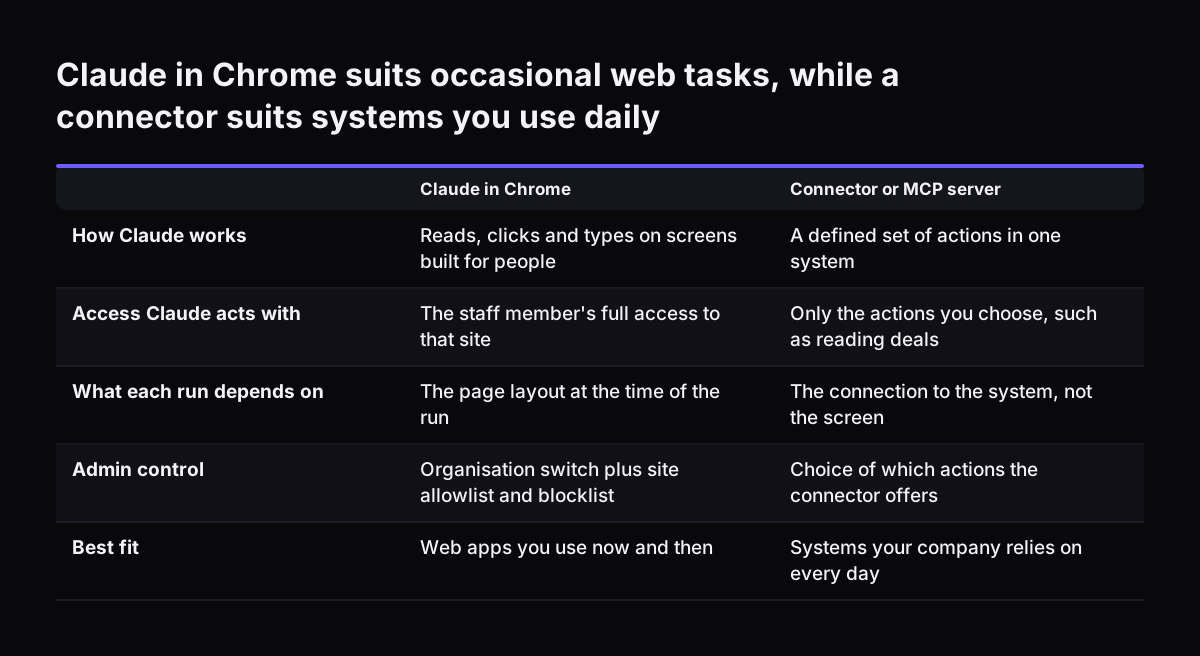
Claude in Chrome clicks through screens built for people. For a system your company relies on every day, a direct connection is usually faster and easier to control. A connector, or an MCP server, gives Claude a defined set of actions in one system instead of the whole screen. MCP is the Model Context Protocol, the standard Claude uses to talk to other software.

Take Zoho CRM or Zoho Desk. Claude could open either in the browser, read a record and type into a field. Every run then depends on the page layout and on the staff member's full access. A connector can limit Claude to reading deals or creating tickets, and nothing more.

The two approaches work together. The Web Store listing says the skills, plugins and connectors you use in Claude also work in the Chrome side panel. A sensible split is the browser for occasional web tasks, and a connector for the systems that hold your customer records.

When Svennis connects Claude to a company's programs, it builds a connector, an MCP server, a plugin or a skill for each connection. It shows the options with their cost, and the client chooses. If the browser work sits inside a larger desktop job, Claude Cowork for UK firms explains where that fits.

Claude in Chrome suits occasional web tasks, while a connector suits systems you use daily. Claude in Chrome / Connector or MCP server. How Claude works: Reads, clicks and types on screens built for people / A defined set of actions in one system; Ac

What Claude in Chrome means for a UK company

For a UK company, Claude in Chrome is a data question first. The Web Store listing declares that the extension handles personally identifiable information, personal communications, location, web history, user activity and website content. That list belongs in your records of the tools staff use, alongside the plan agreement you hold with Anthropic.

The contract has limits worth noticing. Claude Code's documentation gives a US example: a Business Associate Agreement with Anthropic does not cover data sent to third-party sites through Claude in Chrome. The general point applies everywhere. Your agreement with Anthropic covers Anthropic. It does not cover the websites Claude visits on your staff's behalf.

The Web Store listing carries a note that the developer has not identified itself as a trader under EU rules. That note is aimed at EU consumers and says nothing about a business customer, so rely on your business plan terms with Anthropic.

Similar names in the store are a practical point for your rollout. The Chrome Web Store also lists unofficial extensions with Claude in the name, and at least one states that it has no affiliation with Anthropic. A staff member searching the store could install a different item from the one you approved, which is why rule one in the safe-use list names the publisher.

For the wider legal picture, read the overview of AI law that applies to UK businesses before you finalise your staff rules.

Next steps for rolling out Claude in Chrome to your team

A controlled rollout of Claude in Chrome takes a handful of decisions, in this order:

  1. Check the plan. Confirm everyone is on a direct Anthropic plan. Choose Team or Enterprise if you want an admin switch and site lists.
  2. Read your admin defaults. Open the admin settings and record whether the extension is on or off today. On Enterprise, decide whether to enable Cowork in the cloud.
  3. Write the allowlist. Start with two or three web apps for one team.
  4. Publish the safe-use rules. Use the one-page list above and add the name of the person who handles requests.
  5. Pilot one read-only task. A weekly briefing like the worked example is a good first job.
  6. Decide which systems need a connector. List the systems staff open most often in the browser and ask whether a connector would be safer.

If your company already pays for Claude seats that people barely use, Claude Relaunch puts paid Claude seats to work, browser tasks included. For plan costs and the four-step route from Workshop to monthly operations, start with the Claude for business guide.

Sources

  1. Claude - Chrome Web Store
  2. Claude - Chrome Web Store (Vietnamese listing)
  3. Get started with Claude in Chrome, Claude Help Center
  4. Use Claude Code with Chrome, Claude Code Docs
  5. CG - Claude on google - Chrome Web Store
Free, 30 minutes

Pick a time. Bring the process this article made you think of.

You leave with a clear yes or no on putting Claude on it, and the step that fits from our published prices. You speak to someone who builds the agents, not a salesperson.

Prefer to call? +44 7588 772736 · Not ready to talk? See it on your business first.

30 minutes · video call · free
  1. 1Time
  2. 2Details
  3. 3Booked