Skip to content
SVENNISAIWe speak Claude.
Blog · Claude

Claude artifacts for business: what a team can build, share and publish

Claude artifacts turn a chat into a working calculator, document or dashboard. This guide shows what a team can build, how sharing works and what owners should control.

9 min read

Book a 30-minute call · with a Claude Certified Architect from our team.

Article · 9 min read
Abstract cover of nested panels opening beside a flowing line, suggesting a document taking shape next to a conversation

Claude artifacts: what they are and which plans include them

Claude artifacts are working documents and small tools that Claude builds beside your conversation. Every Claude plan has them: Free, Pro, Max, Team and Enterprise. A team can use them for a pricing calculator, a meeting-notes template or a small dashboard. You can then share the result inside the company, and beyond it if an owner allows that.

An artifact is anything Claude makes for you that you would put in front of someone: a design, a deck, a document, a dashboard or a small interactive tool. That definition comes from Anthropic's own help centre article on artifacts. The artifact opens beside the chat. You can edit it, come back to it later and share it.

Not every answer becomes an artifact. Claude makes one when the content is significant and self-contained, typically over 15 lines. A two-line reply stays in the chat. Artifacts also work in Claude Code, the coding tool, on every plan that includes Claude Code.

If Claude itself is new to you, start with our guide on what Claude is and how UK businesses use it. This post assumes you already have an account and want to know what artifacts add.
Turning on Claude artifacts: the capability setting and the templates

Claude artifacts need one capability switched on before they appear. Go to Settings > Capabilities and turn on Cloud code execution and file creation. In the updated Settings layout, the same switch is called Create and edit files. Without it, Claude answers in plain text.

Templates are ready-made starting points for particular kinds of artifact. Their availability differs by plan:

  • Docs, Slides and Design: in beta and on by default on Pro, Max and Team. On Enterprise they turn on by default on 15 October 2026, and owners could switch them on earlier.
  • Dashboards: in beta on Pro, Max, Team and Enterprise.
  • Motion: in beta on Team and Enterprise. It is on by default on Team and off on Enterprise until an owner turns it on.

Two older kinds of artifact still exist, and you may find them in your account. Legacy artifacts are artifacts made in a chat before 16 September 2026. They keep working and you can still publish and share them, but nobody can make new ones.

Live artifacts are artifacts made in Claude Cowork before 19 August 2026. They keep working, but you cannot edit them in place. Both older kinds follow some sharing rules of their own, covered later in this guide.

What a team can build in a Claude artifact without a developer

A team can build three kinds of useful Claude artifact without writing code: a small tool, a reusable document and a dashboard. You describe what you want in plain English, and Claude writes it.

A pricing calculator or other one-page tool

A pricing calculator is a page where a salesperson picks products and quantities and sees a total. Artifacts can store data in two ways. Personal storage keeps each person's data private to them. Shared storage lets everyone see and work with the same data. Storage has a 20 MB limit per artifact and accepts text only, so no images, files or binary data.

A meeting-notes template

A meeting-notes template is a document with fixed headings for attendees, decisions and actions, which you reuse each week. The Docs template exports to Word, PDF, Markdown and Google Docs. Decks export to PowerPoint and PDF, or go straight to Google Slides as editable files. Your finished notes can therefore live in the tools the team already uses.

A small dashboard

The simplest dashboard starts from a table you paste into the chat, such as monthly orders by region. The Dashboards template goes further. It builds dashboards from your data platforms or connected apps, such as Salesforce. Claude writes the queries, and each chart shows its query and when it was last refreshed. That makes it easy to check where a number came from.

Worked example: a Claude artifact pricing calculator from a pasted price list

This worked example builds a pricing calculator in a Claude artifact in about the time it takes to write the prompt and test three quotes. You need a paid or free plan with the capability switched on, and a price list you would happily show a customer.

  1. Use the web or the desktop app. Open Claude on the web or Claude Desktop. You cannot change sharing settings in Claude for iOS or Claude for Android.
  2. Start a fresh chat for this one tool. When you share an artifact made in a chat, viewers also get access to the attachments and files in that chat. A clean chat keeps unrelated files out of their reach.
  3. Paste the price list as text. Include product name, unit price and any volume discount bands.
  4. Ask for the tool in one prompt. For example:
    Build a pricing calculator from this price list. Let the user pick products and quantities, apply the volume discount bands, and show the subtotal, the discount and the total. Add a note under the total saying these are list prices.
  5. Test it against quotes you know. Enter three past quotes and compare the totals. Ask Claude to fix any difference, then test again.
  6. Share it with the right access. Give the sales team Can view. Give the person who owns the price list Can edit, so they update it when prices change.

The same six steps work for the meeting-notes template and the pasted-data dashboard. Only the prompt and the test change.

Claude artifacts that call Claude or connected apps, and whose plan pays

A Claude artifact can call Claude itself, for example to summarise text a colleague pastes into it. When it does, the app runs on Anthropic's infrastructure. Sharing is free, and usage counts against each person's own plan limits rather than the creator's.

Artifacts can also connect to the apps you have connected to Claude. That lets them read from and write to tools such as Asana, Google Calendar and Slack. A connector is the link that gives Claude access to one of those programs. Our guide to connecting Claude to Microsoft 365 and Teams explains how that link works for the most common office suite.

Three limits matter when you plan a connected tool:

  • An artifact that pulls from connected apps uses the viewer's connections, not yours. Two colleagues can open the same dashboard and see different data.
  • Connector tools that need approval for each action are not available to artifacts.
  • In Claude Code, a local MCP server can supply data while Claude builds the page, but the published page cannot call it. An MCP server is a small program that connects Claude to another system.

The first limit is usually a strength. Nobody sees data through an artifact that their own account could not already reach.

Sharing a Claude artifact inside a Team workspace: access levels and invitations

Every Claude artifact starts private to the person who made it. Nothing is shared until that person shares it. On Team and Enterprise plans, a shared artifact stays inside your organisation by default.

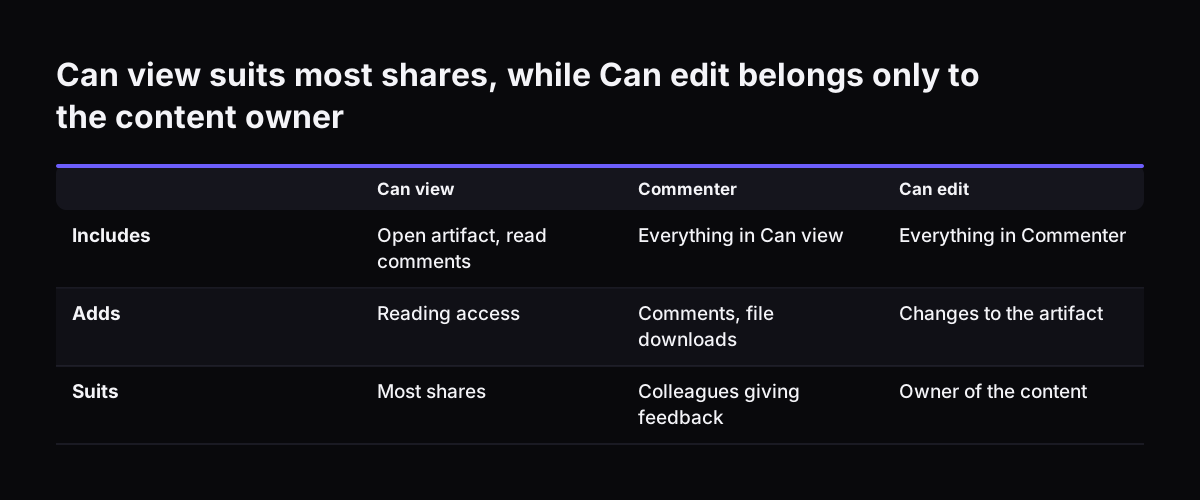
Each artifact offers three access levels, according to Anthropic's guide to sharing artifacts:

  • Can view: open the artifact and read its comments.
  • Commenter: everything in Can view, plus add comments and download any files the artifact offers.
  • Can edit: everything in Commenter, plus make changes.

You can also invite specific people by email. This is in beta on Pro, Max, Team and Enterprise. The invitee needs a Claude account with the exact email address you invited. Claude does not tell you whether that person has one, so confirm the address before you send.

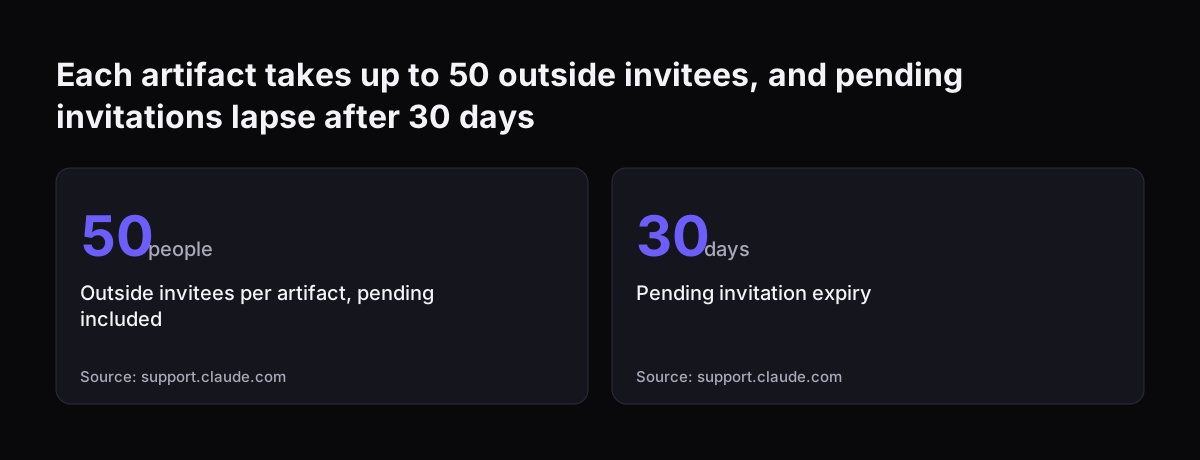
Pending invitations expire after 30 days. Accepted invitations do not expire. That means an old invitation can still grant access months later, so someone should review who holds access to long-lived tools.

Remember the rule from the worked example. Sharing an artifact made in a chat also shares the attachments and files in that chat. Check the chat before you press share, not after.

Can view suits most shares, while Can edit belongs only to the content owner. Can view / Commenter / Can edit. Includes: Open artifact, read comments / Everything in Can view / Everything in Commenter; Adds: Reading access / Comments, file downloads

Publishing a Claude artifact beyond your organisation, and the limits that apply

Publishing a Claude artifact outside the company is an owner's decision on Team and Enterprise plans. An owner decides whether users can share outside the organisation at all. Email invitations to outside people are on by default on Team plans and off by default on Enterprise plans.

You can invite up to 50 people from outside your organisation per artifact, counting pending and accepted invitations. Parts of the artifact that use Claude or your connectors do not work for them. A calculator built from pasted prices works for a customer, but a dashboard reading live data from your apps does not.

Everyone needs a Claude account to open a shared artifact. People without one cannot open it, even with the link. The only exception is a legacy artifact published from a chat.

Legacy artifacts carry one irreversible rule. Unpublishing a legacy artifact permanently deletes all its stored data, both personal and shared. You cannot publish it again afterwards.

Pages published from Claude Code

In Claude Code, an artifact is a live interactive page published from your session to a private URL on claude.ai. It is a self-contained page with no backend, so it cannot serve several routes. The rendered page must be 16 MiB or smaller. On Team and Enterprise plans, public sharing stays off until an owner enables it for the organisation, according to the Claude Code artifacts documentation.

Each artifact takes up to 50 outside invitees, and pending invitations lapse after 30 days: Outside invitees per artifact, pending included 50 people, Pending invitation expiry 30 days
Source: support.claude.com

What owners and admins control for Claude artifacts, setting by setting

Owners on Team and Enterprise plans control the settings that decide how far a Claude artifact can travel. The defaults differ between the two plans, so check yours rather than assume.

SettingTeam plan defaultEnterprise plan defaultDecision for the owner
Sharing outside the organisationArtifacts stay inside; owner decidesArtifacts stay inside; owner decidesWho may share externally, and why
Email invitations to outside peopleOnOffKeep on, or switch off until rules exist
Public sharing of Claude Code pagesOff until an owner enables itOff until an owner enables itWhether any page should be public
Motion template (beta)OnOff until an owner turns it onWhether the team needs it
Docs, Slides and Design templates (beta)OnOn by default from 15 October 2026Whether to leave them on

Publishing, sharing and deleting artifacts each appear in your organisation's audit log under claude_artifact_* event types. That gives you a record of who sent what where.

Enterprise organisations also have the Compliance API. It offers one endpoint that returns an artifact version's metadata and another that downloads its content. The metadata includes claude_chat_id, the chat the artifact belongs to. One independent guide reports that the API exposes roughly the 20 most recently published versions, and that older versions are not kept indefinitely.

Data points a company should settle before staff publish Claude artifacts

A company should agree a short set of rules before staff publish Claude artifacts, because sharing is quick and some actions cannot be undone. These are the points to settle in writing:

  • What may go into an artifact. List prices and public product details, yes. Decide where customer or staff personal data stands.
  • Who may share outside the organisation. Name the roles, not just "managers".
  • The default access level. Can view for most shares, Can edit only for the owner of the content.
  • Clean chats. Build anything you will share in a chat that holds no unrelated attachments.
  • Connected data. Agree which connected apps an artifact may read from and write to.
  • Ownership and clean-up. Each shared artifact has one named owner who updates it and removes access when it is no longer needed.
  • Legacy artifacts. Decide before anyone unpublishes one, since unpublishing deletes its stored data for good.

At Svennis we settle the outside-sharing rule with the owner before the first artifact leaves the team. At every rollout we also check whether the chat behind a shared artifact holds files its viewers should not see. That second check catches more problems than any setting does.

What Claude artifacts mean for a UK company on a Team plan

For a UK company, Claude artifacts mostly arrive through the Team plan, which Anthropic sells for teams of 2 to 150. Team and Enterprise plans do not train models on your content by default. Anthropic lists plan prices in US dollars on its pricing page. Our guide to what Claude costs and how to start puts those figures in a business context.

Artifact content is stored on infrastructure that Anthropic operates. It is visible only to authenticated members of the publishing organisation and the people they share it with, unless the artifact is shared publicly. Your data protection lead should know this before personal data goes into any artifact.

Two availability limits catch companies that buy Claude in a particular way:

  • Claude Code artifacts are not available on Amazon Bedrock, Google Cloud's Agent Platform or Microsoft Foundry. If you reach Claude through a cloud provider, check first.
  • Claude Code artifacts are not available when customer-managed encryption keys, HIPAA or zero data retention is enabled for the organisation.

For most small and mid-sized UK firms on a standard Team plan, neither limit applies. The practical work is the owner settings and the written rules from the previous sections.

Next steps: from one useful Claude artifact to a team habit

The next step with Claude artifacts is to build one useful tool, check the settings around it, and only then widen access. In order:

  1. Confirm that Create and edit files is on in Settings > Capabilities.
  2. Build the pricing calculator from the worked example, or the meeting-notes template, in a clean chat.
  3. Go through the admin table with your owner and record each decision.
  4. Write the data points into your company's AI rules and tell the team where to find them.
  5. Review shared artifacts and accepted invitations once a quarter.

If you want help putting a whole team on Claude, Svennis works in four steps: the Workshop, a pilot, the department Activation, then monthly operations. The pilot is either Pilot Claude A, an AI agent on Claude for one process, or Pilot Claude B, Claude Team for the whole team. Pilot B is described on the Claude Team pilot page. If your team already has seats and needs habits, see Claude Team adoption in two weeks.

Sources

  1. Claude Help Center: What are artifacts and how do I use them?
  2. Claude Help Center: What are artifacts and how do I use them? (updated article)
  3. Claude Help Center: Share artifacts
  4. Claude Code Docs: Share session output as artifacts
  5. Claude API Reference: Compliance API, Artifacts
  6. Anthropic: Plans and pricing
  7. Nimbalyst: Claude Code Artifacts, how they work, limits and use cases
Free, 30 minutes

Pick a time. Bring the process this article made you think of.

You leave with a clear yes or no on putting Claude on it, and the step that fits from our published prices. You speak to someone who builds the agents, not a salesperson.

Prefer to call? +44 7588 772736 · Not ready to talk? See it on your business first.

30 minutes · video call · free
  1. 1Time
  2. 2Details
  3. 3Booked