Skip to content
SVENNISAIWe speak Claude.
Blog · Claude mobile

Claude on mobile for field and sales staff, connected safely to your CRM

Claude on a phone helps people on the road once it can read and update the CRM. This guide covers connectors, permissions, voice, photos and rules for client data.

10 min read

Book a 30-minute call · with a Claude Certified Architect from our team.

Article · 10 min read
Abstract cover of small moving points travelling along curved paths into one central node

Claude on mobile for field and sales staff works once it reaches the CRM

Claude on mobile for field and sales staff pays off once the phone app can read and update your CRM. Without that link, a rep has a capable chat window that knows nothing about the customer in front of them. With it, the same rep can check an account, log a visit and set a follow-up task before leaving the car park.

Claude on mobile is the Claude app on a phone, signed in to the same company account your staff use on the web and desktop. If you are new to the product itself, start with our plain guide to what Claude is. This post assumes you already have a company workspace.

The guide covers what the mobile apps do and what syncs to them. It explains voice and photos of documents, how to connect the CRM, and which permissions to grant. It then sets out rules for client data on a phone.

The examples use Zoho CRM, because many of our readers run it. The same decisions apply to Salesforce or any CRM with a connector. The order of work does not change: connect, limit, test, then roll out.
What the Claude mobile apps do, and which plans include them

The Claude mobile apps are available on every plan type: Free, Pro, Max, Ultra, Team and Enterprise. Anthropic's download page adds that some features are limited to paid plans. For a business, that means the plan choice matters more than the app.

The phone app can do three things the desktop cannot, or does differently:

  • It connects to device-specific apps such as Maps and iMessage, according to the download page.
  • It uses web-based connectors, such as Google Drive and Slack, which work on web, desktop and mobile alike.
  • It offers Remote Control, a feature that sends tasks from the phone to the Claude Code command line on a computer.

Remote Control is a developer feature. It gives access to a local development environment or files, so field and sales staff do not need it. Leave it out of your rollout plan.

Maps is the device app that matters most for people on the road. A rep who has just checked tomorrow's appointments in the CRM can hand the address straight to Maps. That small step is where a connected phone starts to save time that a desktop never could.

What syncs from the company workspace to the phone, and what stays on the desktop

Conversations, projects, memory and preferences sync across every device where a user is signed in. Anthropic states this on its download page. A Project, in Claude, is a workspace with its own chat history, a knowledge base and instructions that apply to every chat inside it.

Projects are the main way to give field staff shared context. Put your visit-note template, product list and tone of voice in one Project. Every rep then opens the same instructions on the phone that the office uses on the desktop.

Two things do not travel to the phone. Claude Cowork, the agent that brings Claude Code's abilities to the desktop app for everyday knowledge work, keeps its local sessions on the device. Cowork is generally available on macOS and Windows through the Claude Desktop app. Desktop extensions are installed locally and reach local files, browsers and native applications, so they stay on that computer too.

The practical rule follows from that. A connection built as a desktop extension serves the office but never reaches a rep on the road. A web-based connector reaches both. If your documents sit in Zoho WorkDrive or another cloud store, plan for a web-based connection from the start.

Voice notes and photos of documents on the road

Photos of documents work because every current Claude model accepts image input and supports vision. Anthropic's models overview states that all current models handle text and image input, text output and several languages. A rep can photograph a signed order form, a delivery note or a business card and ask Claude to read it.

Reading the photo is the easy part. The decision is where the result goes. A summary that stays in a chat helps nobody back at the office. Decide whether the extracted details belong in a CRM record, and whether the photo itself must be stored there as evidence.

Check one thing before you promise anything to staff. Confirm that your CRM connector can write the fields you need, and attach files if you want the image kept. If it cannot, the rep still has to type the record by hand.

Voice

Voice input is less documented. The download page lists Dictation as a feature and notes that the Linux desktop release lacks it. The pack says no more about how voice behaves on phones. Test dictation on the actual handsets your staff carry, in a car and on a noisy site, before you build a process around it.

Connecting the CRM so Claude can read and update records

A connector is the link that lets Claude work with your CRM directly. In practice it is an integration built on MCP, the Model Context Protocol. It has a server the vendor runs, an OAuth sign-in and a set of tools the model may call. Each tool is one action, such as searching accounts or creating a task.

Some CRM vendors now ship their own. Salesforce in Claude is a beta plugin that brings a seller's accounts, opportunities and pipeline into Claude with 37 pre-built sales skills. It is available in beta on all paid plans, for organisations that Salesforce approves through its beta sign-up.

For Zoho, our guide to connecting Claude to Zoho CRM with MCP walks through the setup step by step. When Svennis does this work, we build each connection as a connector, an MCP server, a plugin or a skill. We show you the options with their cost, and you choose.

Two cautions apply to any ready-made connector. Anthropic's connectors directory says it cannot verify that listed tools will work as intended, or that they will not change. And a connector reads the data as it is. Dirty records produce confident wrong answers on a small screen, so clean the CRM data before adding Claude.

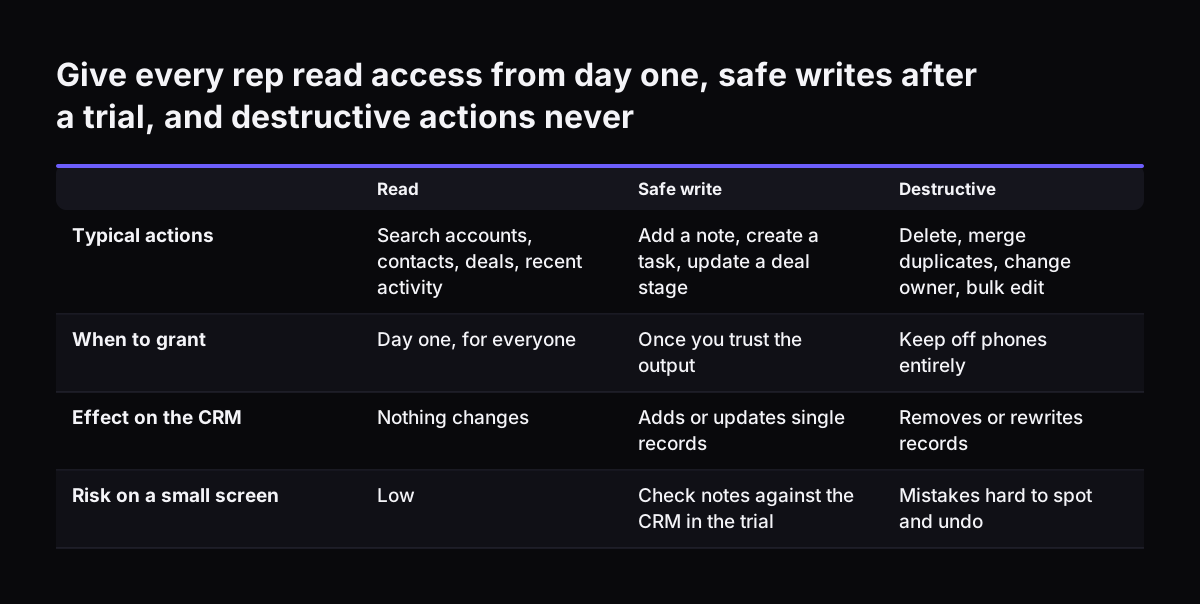
Permissions to grant: read first, safe writes second, destructive actions never

Permissions decide what Claude may do in the CRM on a rep's behalf. Vendors increasingly group their tools by risk. The Close CRM connector, for example, offers a catalogue of 117 tools split across read, safe-write and destructive scopes. Gong exposes exactly three read-only tools.

Use those three scopes as your own policy for people on the road:

  • Read: search accounts, contacts, deals and recent activity. Grant this to everyone from day one.
  • Safe write: add a note, create a task, update a deal stage. Grant this once you trust the output.
  • Destructive: delete records, merge duplicates, change ownership, bulk edits. Keep these off phones entirely.

Because the connection runs through an OAuth sign-in, the CRM user who signs in matters. Give field staff a CRM role that matches what they should change from a phone, not what a manager can change from a desk.

At Svennis we start new mobile users on read access, then switch on write tools after we have compared the notes they produce with the CRM records. That check catches wrong accounts and duplicate tasks before they spread. Admin permissions help here too: they give members access to specific areas, such as billing or privacy, without making them Owners.

Give every rep read access from day one, safe writes after a trial, and destructive actions never. Read / Safe write / Destructive. Typical actions: Search accounts, contacts, deals, recent activity / Add a note, create a task, update a deal stage /

What to connect, what to allow and what to leave out: a checklist

The checklist below sets out each connection a field or sales team might want on the phone, the permission to grant and the reason. Use it as the agenda for the meeting where you sign off the rollout.

ConnectionOn the phone?PermissionReason
CRM accounts, contacts, dealsYesReadReps need context before and after every visit.
CRM notes and tasksYes, after a trialSafe writeLogging from the car park is the main time saving.
CRM deletes, merges, bulk editsNoNoneMistakes on a small screen are hard to spot and undo.
Email and calendar (Microsoft 365)Yes, with careDrafts first, sending laterWith write tools on, Claude can send email and manage events.
Cloud files (Google Drive, WorkDrive)YesReadPrice lists and spec sheets on the road.
Desktop extensionsNot possibleNot applicableThey are installed locally and stay on the computer.
MapsYesDevice appTurns the next CRM appointment into a route.
Data enrichment servicesCheck the contractReadSome vendors set conditions on AI use of their data.

The Microsoft 365 row needs a note. With write tools enabled, that connector lets Claude draft, send and organise email, manage calendar events and edit files in OneDrive and SharePoint. Teams stays read-only.

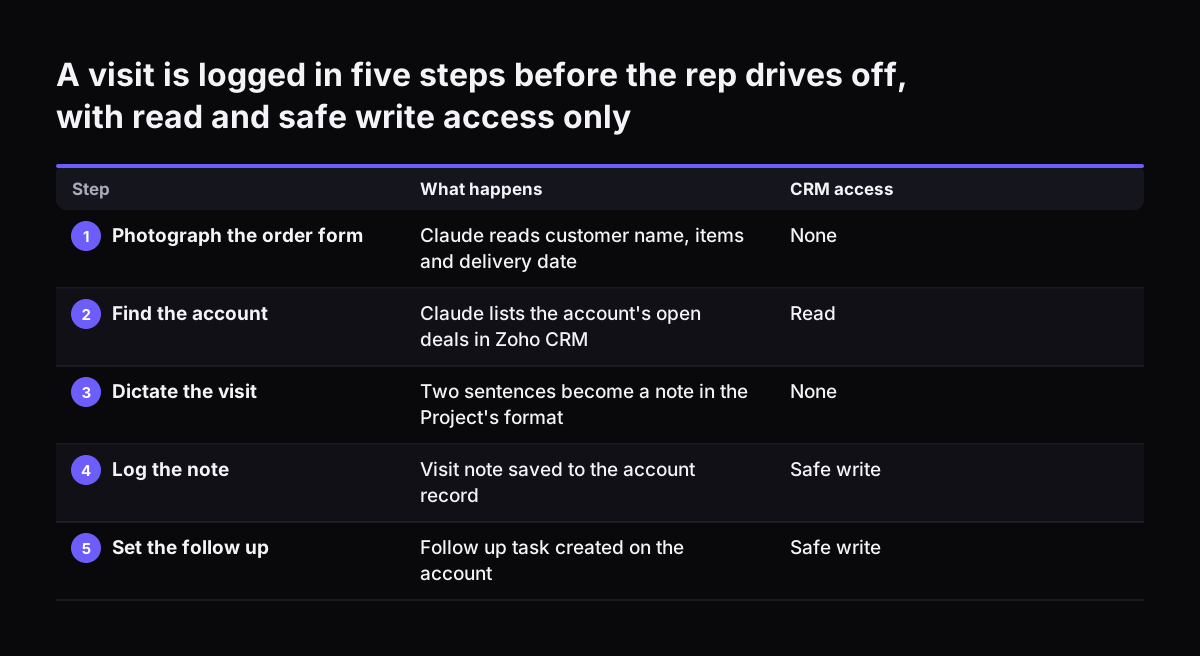
A worked example: a sales visit logged from the car park

A worked example shows how the pieces fit. Take a company on the Claude Team plan, with each rep on a standard seat. Memory is off by default for Team organisations, so nothing from one conversation carries into the next unless an admin changes that. A web-based connector links the workspace to Zoho CRM, with read and safe-write permissions only.

A rep finishes a customer visit and opens the Claude app before driving off:

  1. She photographs the signed order form and asks Claude to read the customer name, items and delivery date.
  2. She asks Claude to find the account in Zoho CRM and list its open deals.
  3. She dictates two sentences about the visit, then asks for a visit note in the format set in the team's Project.
  4. Claude proposes the note, a deal stage change and a follow-up task for next week. She reads them and confirms.
  5. She asks for the address of her next appointment from the CRM and opens it in Maps.

Back at the office, her manager sees the note, the task and the new deal stage in Zoho CRM. Nobody re-types anything, and nobody chases her for an update at five o'clock.

Notice what the rep could not do. She could not delete the old deal or merge two contacts that looked alike. Those actions wait for a desk, a bigger screen and a second look.

A visit is logged in five steps before the rep drives off, with read and safe write access only. What happens / CRM access. 1. Photograph the order form: Claude reads customer name, items and delivery date / None; 2. Find the account: Claude lists th

Rules for client data on a phone

Client data on a phone needs written rules, because a phone leaves the building every day. Start with accounts. Staff should use company seats on the Team or Enterprise plan, never personal Free, Pro or Max accounts. Memory is on by default on those personal plans, and memory syncs to every device the person signs in on.

Write down these rules before rollout:

  • Client conversations happen in the company workspace, inside the team's Project.
  • Memory stays off on the Team plan unless you decide otherwise in writing.
  • Photos of signed documents go into the CRM record, not just the chat.
  • Delete and bulk-edit actions are never granted to mobile users.
  • A named person can revoke a lost phone's access to the CRM connection the same day and log the loss. That person decides whether the loss must be reported to the ICO, which has to happen within 72 hours of the company becoming aware of it.

Check third-party contracts as well. Data providers such as ZoomInfo connect under their own terms, so read the provider's current terms on AI use before you switch the connector on. Outreach requires an active licensed seat and its Amplify add-on before its connector works.

Finally, remember that admin settings shape what staff can do. Anthropic notes that an administrator can disable a tool such as web search, and requests that use it will then fail. Tell staff which tools you have switched off, so a refusal on the road does not look like a fault.

What this means for a UK company with staff on the road

For a UK company, the plan choice usually comes down to Team or Enterprise. Anthropic lists its prices on claude.com/pricing in US dollars, before tax. Currency and tax handling vary by country, so check the price shown for a UK account. The Team plan covers teams of 2 to 150, with standard seats at $20 per seat per month billed annually, or $25 billed monthly.

Enterprise costs $20 per seat per month, billed annually, plus usage at API rates, with a 20-seat minimum. Any organisation can now buy Enterprise directly on Anthropic's website, without a sales conversation. Most UK firms with a field team of a few dozen people fit the Team plan.

The seat price is rarely the main cost. The work sits on the CRM side: cleaning records, setting CRM roles for mobile users and building or approving the connector. Budget time for that before you buy seats for everyone. Our guide to what Claude for business costs and how to start breaks the whole bill down.

UK field teams also tend to mix company and personal phones. Decide which one carries client data before rollout, not after the first lost handset. The data rules in this guide only hold if the account on the phone is a company seat.

Next steps before you roll Claude out to people on the road

Roll out Claude on mobile in a fixed order, and do not hand out seats until the CRM connection is tested. These steps work for most field and sales teams:

  1. Choose the plan and confirm every rep will use a company seat.
  2. Clean the CRM records your reps touch most: accounts, contacts and open deals.
  3. Set up a web-based CRM connector, with read access for everyone.
  4. Build one Project with the visit-note format, product list and rules.
  5. Test photos and dictation on the phones staff actually carry.
  6. Run two or three reps for a trial, then compare their notes with the CRM.
  7. Switch on safe writes, and keep destructive actions off phones.

If you want help, Svennis works in four steps. A Workshop maps the process and the connections. Then comes Pilot Claude A, an AI agent on Claude for one process, or Pilot Claude B, Claude Team for the whole team. The department Activation follows, and then monthly operations.

For a field team, a single process such as visit logging is a sensible first pilot. Claude Pilot A, an AI agent live in 30 days describes how that first process goes live.

Sources

  1. Claude Help Center: Release notes
  2. Claude apps release notes
  3. Anthropic: Plans and pricing
  4. Anthropic: Download Claude
  5. Anthropic: Models overview
  6. AgentsCamp: Claude for Sales Teams
Free, 30 minutes

Pick a time. Bring the process this article made you think of.

You leave with a clear yes or no on putting Claude on it, and the step that fits from our published prices. You speak to someone who builds the agents, not a salesperson.

Prefer to call? +44 7588 772736 · Not ready to talk? See it on your business first.

30 minutes · video call · free
  1. 1Time
  2. 2Details
  3. 3Booked