Skip to content
SVENNISAIWe speak Claude.
Blog · Claude Team

Single sign-on and user provisioning for Claude: a setup guide for your organisation

A practical guide to connecting Claude to your identity provider: domain verification, SSO, JIT or SCIM provisioning, roles, offboarding and one-way domain capture.

10 min read

Book a 30-minute call · with a Claude Certified Architect from our team.

Article · 10 min read
Abstract cover of linked rings passing through a single gateway and branching into ordered lanes

Single sign-on and user provisioning for Claude: what they do and which plan you need

Single sign-on and user provisioning for Claude let your identity provider decide who signs in to Claude, with which role, and when access ends. SSO is available on Team plans, Enterprise plans and Console organisations. Just-in-time provisioning works on Team and Enterprise. SCIM provisioning needs Enterprise or a Console organisation.

The terms in this guide

An identity provider (IdP) is the system that holds your staff accounts, such as Okta, Microsoft Entra ID or Google. Single sign-on (SSO) is a login method where people sign in to Claude through that identity provider instead of a separate Claude password. User provisioning is the way Claude accounts are created, updated and removed for your staff.

Claude offers three provisioning modes:

  • Invite only, the default, where an admin adds and removes people by hand in Claude.
  • Just-in-time (JIT) provisioning, where people assigned to the Anthropic app in your IdP get a Claude account when they first log in.
  • SCIM directory sync, where Claude creates and removes accounts from your IdP assignments, without anyone logging in first.

The point of all three is simple. Access to Claude should follow the same joiner and leaver rules as your email and your business systems. If you are still choosing a plan, the guide to what Claude costs for a business and how to start covers that decision first.
Who sets up SSO for Claude: the required roles and the WorkOS flow

SSO for Claude is set up by an Owner or the Primary Owner on Team and Enterprise plans. On Claude Console, the person must be an Admin. Nobody with a lower role can start the setup. Anthropic uses WorkOS for domain verification and SSO setup. In practice, the admin console hands you to a WorkOS flow that walks through each step. The same provider handles SCIM: the help centre tells you to follow the WorkOS setup guide when you configure SCIM in your identity provider.

Plan the people before you start

The setup touches three systems, and they often sit with different people. You need:
  • the Claude Owner or Primary Owner, to start the flow in Claude;
  • whoever manages your DNS, to add a verification record;
  • whoever administers your identity provider, to create the Anthropic app and assign users.
You can verify several domains for one organisation, for example a main domain and a regional one. All of them must be managed through a single identity provider. If one subsidiary signs in through Google and another through Entra ID, settle that before you begin. One limit matters if you also use Claude Console for developers. IdP-initiated login, where staff start from their identity provider's app dashboard, is not currently supported for Console organisations that share SSO settings with a Team or Enterprise organisation.

Verifying your company domain with a DNS TXT record

Domain verification is the step that proves you own your company's domain, so SSO can be configured for accounts on it. You prove ownership by adding a DNS TXT record that Claude gives you. Verification alone does not change anyone's access. Access is only affected once SSO is set up and explicitly enforced.

The steps

  1. Add your domain in the Claude admin console and start verification.
  2. Copy the full TXT value. It begins with anthropic-domain-verification- and is longer than what is visible in the box.
  3. Add it as a TXT record at your DNS host, exactly as copied. The value is case-sensitive.
  4. Wait 10 minutes for the change to propagate, then check again.
DNS changes can take 24 to 48 hours to propagate globally. If verification is still pending after the first check, give it time before you start troubleshooting.

Two details that catch people out

First, save the TXT value somewhere safe. Once the domain shows as Pending, the admin console does not display the value again. If you lose it, you have to remove and re-add the domain, which generates a new value. Second, switch on Restrict organization creation once the domain is verified. This toggle stops people creating new Claude or Console organisations, including personal accounts, with your verified domain. It also closes a gap that the next sections return to.

Connecting your identity provider over SAML and turning on Require SSO

Claude's help centre has a SAML setup guide for each common identity provider. SAML is the sign-in standard those guides use to pass a confirmed identity from your IdP to Claude. The guides cover:
  • Okta
  • Entra ID (formerly Azure AD)
  • Google
  • OneLogin
  • JumpCloud
  • Duo
Follow the guide for your provider inside the WorkOS flow. Then test with one or two accounts before you change anything for everyone.

Require SSO and what it changes

Require SSO is the setting that forces everyone to use "Continue with SSO" to log in. While it is off, people can choose SSO or email. Turning it on is the moment SSO starts to govern access for real. The Primary Owner is not exempt from SSO enforcement. Enforcement is applied by email domain, so an owner address on your domain goes through SSO like everyone else's.

Put the certificate expiry in your calendar

SAML connections depend on a certificate or client secret that expires. If Require SSO is on and that credential has already expired, no one in your organisation can sign in to update it. Every sign-in option routes through SSO. Record the expiry date when you set up the connection, and renew it well before then.

Choosing invite only, JIT or SCIM provisioning by plan

Your plan decides most of this choice. On a Team plan you choose between invite only and JIT, because SCIM is not available for Team plans or for Console organisations joined to a Team plan's parent organisation. On Enterprise you can use any of the three.
ModePlansHow people joinHow access endsCustom-role groups
Invite onlyAll (default)An admin invites them; SSO access alone does not add themAn admin removes them in ClaudeManaged by hand in Claude
JITTeam, Enterprise, ConsoleAssigned in the IdP, account created at first loginLogin blocked when unassigned; seat kept until an admin removes themCreated and filled by hand in Claude
SCIMEnterprise, ConsoleAssigned in the IdP, account created without a loginDeprovisioned automatically from IdP assignmentsSynced from the IdP
JIT is the simplest automated option. It needs no configuration beyond selecting it as the provisioning mode. SCIM takes more setup in the IdP but handles leavers without manual work.

Two warnings before you press save

Do not enable SCIM and JIT at the same time. If both are active, SCIM takes precedence. Check assignments in your IdP before you save JIT or SCIM settings. Any users who are not assigned to the Anthropic application when you save will be deprovisioned from the organisation. Assign everyone who should keep access first, then switch the mode.

Roles and groups: what your identity provider controls in Claude

Group mappings in Claude set two things only: a user's role type and their seat tier. A group mapping links a group in your identity provider to one of those settings in Claude. Everything else about a person's access is set elsewhere. Under JIT, new users receive the User role by default on first login. If someone should be an Admin, you either map an IdP group to that role or change it in Claude.

Custom roles depend on SCIM

A custom role in Claude has no default permissions. Access comes entirely from the custom roles assigned to the user's groups in Claude. Those groups sync from your identity provider only when the provisioning mode is SCIM directory sync. With JIT, you create the groups in Claude and add users to them by hand. On a Team plan, that means someone has to maintain group membership in two places.

The Primary Owner sits outside the mappings

The Primary Owner role cannot be assigned through group mappings. It can only be transferred manually from Organization settings, then Members. The Primary Owner is also exempt from SCIM reconciliation, so a sync cannot remove them by accident. Owners and Admins are not exempt. Some settings never touch the identity provider at all. Browser access is one example, covered in the post on Claude in Chrome for business, its plans and admin controls.

Offboarding leavers: how access ends under JIT and under SCIM

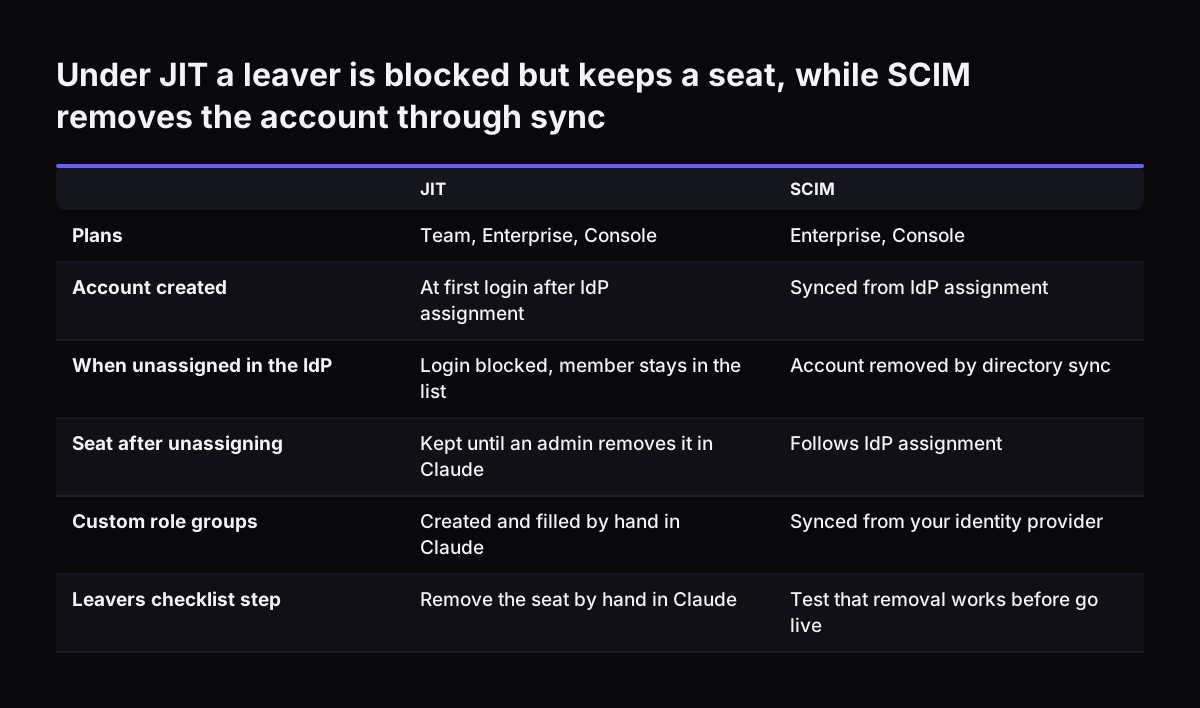
Offboarding in Claude works differently under JIT and under SCIM, and the difference decides your leavers process. JIT never removes members automatically. When you unassign someone from the Anthropic app in your IdP, they can no longer log in. They stay in your member list and keep their seat until an admin removes them. SCIM directory sync removes people based on IdP assignments. Timing depends on the provider. Microsoft Entra only pushes SCIM changes every 40 minutes, so a leaver on Entra can keep access for a short while after you unassign them.

Test removal, not only creation

Creating accounts usually works first time. Removal is where problems show up later. On Microsoft Q&A, one administrator reported in January 2026 that SCIM from an Entra enterprise app created Claude users but did not deprovision them. The error returned was SystemForCrossDomainIdentityManagementServiceIncompatible, with an HTTP 400 status. The only answer on that page was AI-generated, so treat it as a signal to test, not as a fix. At Svennis we remove a test user from the IdP app before go-live and then check the Claude member list ourselves, because a leaver who still holds a seat is the failure nobody notices until an audit. On a Team plan we add "remove the seat in Claude" to the client's written leavers checklist.
Under JIT a leaver is blocked but keeps a seat, while SCIM removes the account through sync. JIT / SCIM. Plans: Team, Enterprise, Console / Enterprise, Console; Account created: At first login after IdP assignment / Synced from IdP assignment; When u

Worked example: matching email fields in Okta so SSO and SCIM agree

Claude uses the email address as its primary identifier to match SSO sign-ins to provisioned seats, and it requires an exact string match. In Okta, SCIM provisioning and SSO are configured in separate sections of the app. Each can pull the email from a different profile field. That is where this example starts.

The setup

An Enterprise organisation uses Okta with SCIM. The SCIM mapping sends user.login, the Okta login value, which may be a username. The SAML sign-in sends user.email, the canonical email address. For some staff, the two values differ.

What goes wrong

  • SCIM creates a seat under one value, and the person signs in under another.
  • The first seat becomes a ghost account: it occupies a seat that can never be used.
  • If ghost accounts fill every contracted seat, new sign-ins fail with an out-of-seats error, even after the mapping is fixed.
  • If organisation creation is not restricted, the person may land on a free personal account and bypass the Enterprise organisation.

The fix

  1. Open the SCIM attribute mappings under Provisioning, then To App.
  2. Open the SAML attribute statements under Sign On. You must check both.
  3. Set both to user.email, which holds the canonical address in Okta.
  4. Run a full sync. An incremental sync does not update existing users after a mapping change.
  5. Remove the ghost accounts to free their seats.
  6. Ask affected Claude Code users to run claude auth login --enterprise again.
If most users show the same mismatch, the mapping is the cause. If only one or two do, look at their individual accounts.

Domain capture of existing staff accounts: Enterprise only, and one-way

Domain capture is an organisation-level setting that allows no non-Enterprise accounts on your verified domain. It comes with domain claiming, which lets Enterprise admins find, claim and migrate personal Claude accounts (Free, Pro, Max and Ultra) on that domain. It works the same whether you bought Enterprise from Anthropic or through the AWS Marketplace. Team plans can verify a domain and block new personal accounts, but cannot claim or migrate existing ones.

Before you can start

You must restrict organisation creation, complete DNS verification, actively enforce SSO, and enable JIT or SCIM. Then decide carefully. In the help centre's words, "Domain capture is a one-way door. Once enabled, it can't be reversed."

How the migration runs

  • Each person chooses merge and join, which brings chats, projects, files and memory across, or join fresh, a clean account.
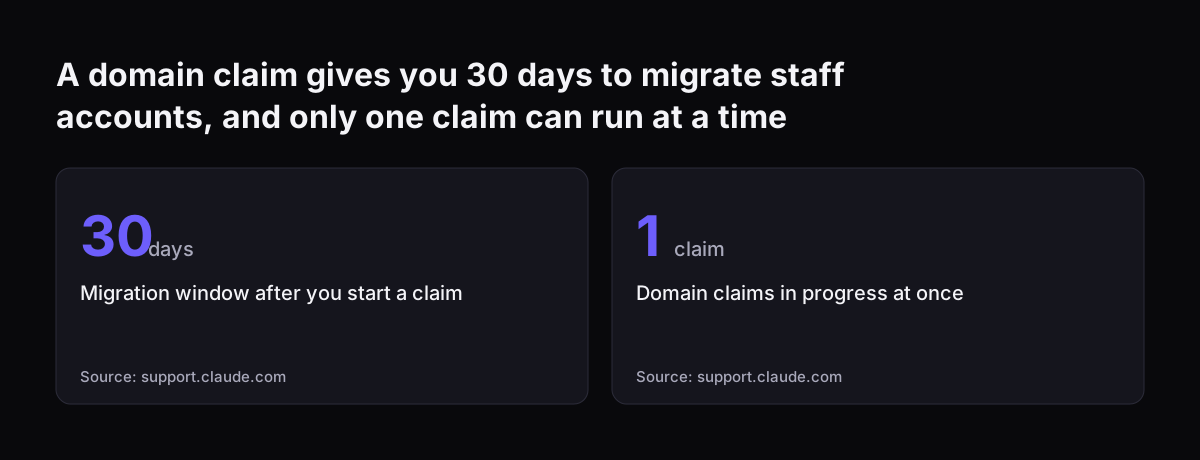
  • The window is 30 days from the date you start the claim, one shared deadline for everyone.
  • At the deadline, unmigrated personal accounts are deactivated. Paid subscriptions are cancelled with a prorated refund.
  • Anyone who has not chosen gets a fresh Enterprise account, and their data is emailed to them.
Only one claim can run at a time, and a domain verified after a claim starts is not included in it. Organisations with HIPAA readiness or customer-managed encryption keys cannot migrate data, so people can only join fresh. Staff who bought a plan through the Apple App Store must cancel it themselves in their Apple ID settings. The full rules are in Anthropic's article on claiming and migrating accounts on your domain.
A domain claim gives you 30 days to migrate staff accounts, and only one claim can run at a time: Migration window after you start a claim 30 days, Domain claims in progress at once 1 claim
Source: support.claude.com

What SSO and provisioning mean for a UK company on Team or Enterprise

For a UK company, the plan you buy sets how much of your leavers process Claude can automate. On a Team plan, JIT stops a leaver signing in once you unassign them in the IdP. Their seat stays assigned until someone removes it in Claude, so your offboarding checklist needs that manual step. On Enterprise, SCIM can remove the account for you, provided you have tested that removal works. Staff who already use Claude with their work address are the second issue. Many teams start with a few personal Pro accounts before the company buys seats. On a Team plan you can block new personal accounts on your domain, but you cannot move existing ones into the organisation. Ask those people to stop using the personal account for work, and agree what happens to the conversations already in it.

Where account ownership and data fit

SSO answers who can sign in. It does not answer where your data sits or who owns the account. The page on how Claude runs in your company, covering accounts, data and UK law deals with those questions. Seat costs by plan, in pounds, are on the Claude pricing page for UK companies. Check them before you decide whether SCIM is worth moving to Enterprise for.

Next steps: a setup checklist for SSO and provisioning in Claude

Set up single sign-on and user provisioning for Claude in this order. Each step depends on the one before it.
  1. Confirm your plan and who holds the Owner or Primary Owner role.
  2. Line up your DNS administrator and your identity provider administrator.
  3. Add the domain, copy the full TXT value, store it safely and add the record.
  4. Turn on Restrict organization creation once the domain is verified.
  5. Configure SAML with your provider's guide and test with two accounts.
  6. Assign everyone who should keep access in the IdP, then choose JIT or SCIM.
  7. On Okta, set both the SCIM and SAML email fields to user.email.
  8. Map groups to role types and seat tiers, and set up custom-role groups.
  9. Turn on Require SSO and record the certificate expiry date.
  10. Remove a test user and confirm the seat is freed in Claude.
  11. On Enterprise, decide on domain capture only after this all works.
If your company already pays for Claude seats and wants them set up properly, Claude Relaunch, our service for putting paid seats to work, includes access and roles as part of the rollout.

Sources

  1. Claude Help Center: Set up single sign-on (SSO)
  2. Claude Help Center: Set up JIT or SCIM provisioning
  3. Claude Help Center: Claim and migrate accounts on your domain
  4. Claude Help Center: SSO/SCIM Email Mismatch, Okta
  5. Microsoft Q&A: Claude AI, Entra Enterprise App, Deprovisioning Users
Free, 30 minutes

Pick a time. Bring the process this article made you think of.

You leave with a clear yes or no on putting Claude on it, and the step that fits from our published prices. You speak to someone who builds the agents, not a salesperson.

Prefer to call? +44 7588 772736 · Not ready to talk? See it on your business first.

30 minutes · video call · free
  1. 1Time
  2. 2Details
  3. 3Booked