Skip to content
SVENNISAIWe speak Claude.
Blog · Claude Team

Auto or manual approval in Claude: the right default for business agents

Auto approval is becoming the default on Claude Team. For agents that write to your CRM, books or helpdesk, keep manual approval for record changes and let Auto be earned step by step.

10 min read

Book a 30-minute call · with a Claude Certified Architect from our team.

Article · 10 min read
Abstract shapes pausing at a gate before some continue forward, suggesting checks before an automated action

The right default: manual approval for any action that changes records

On auto or manual approval in Claude, the right default for business agents is clear. Use manual approval for any action that changes a record in your CRM, accounting system or helpdesk. Grant Auto approval one action at a time. Start with read-only and easily reversed steps, and only after the logs show the agent behaves.

That default runs against the product's direction of travel. Anthropic's Help Center says Auto is rolling out as the default on Pro, Max, Ultra and Team plans. Manual stays the default on Enterprise. If your company is on Claude Team, the faster setting may arrive without anyone choosing it.

Speed is fine for drafting a document or summarising a thread. It is a different matter when Claude can update a deal, post a journal or reply to a customer. Those changes land in systems other people rely on. Some cannot be undone cleanly.

This guide covers four things. It explains what each mode lets Claude do without asking. It lists which actions still ask every time and shows the separate admin setting for connector tools. It ends with a simple rule for which teams keep manual approval.
What Auto and Manual approval mean in Claude

The approval mode is the permission setting that decides whether Claude stops to ask you before it acts. Claude offers two modes, and the Claude Help Center article on the merged Cowork and chat experience defines both.

  • Auto: Claude keeps working without stopping to ask about each step. Automated safety checks run before it takes most actions.
  • Manual: Claude asks before it takes actions. You choose whether to allow each one.

The difference matters most when Claude uses connectors. A connector lets Claude access your apps and services, retrieve your data and take actions inside them. A custom connector is one added through the address of a remote MCP server. An MCP server is a small service that exposes a program's functions to Claude in a standard way.

Notice the wording "most actions" in the Auto definition. Automated checks are a safety net, not a review of your business rules. A check cannot know that a discount over a certain level needs a manager. It cannot know that a customer is in a dispute. Under Manual, a person who knows the business sees the action before it happens.

The setting also follows the product. Chat and Claude Cowork are being merged into one conversation, so the same approval logic applies whether a task starts as a question or as a longer job.

Why Auto is becoming the default on Claude Team plans

Auto is becoming the default on Team plans because agentic work stalls when Claude must stop at every step. The Help Center describes tasks that keep running in the cloud after you close your laptop. It also describes Claude producing documents, spreadsheets with working formulas and presentations that open in PowerPoint. A task like that can involve dozens of small steps. Approving each one by hand defeats the purpose.

Enterprise keeps Manual as the default, with one exception: the Cowork side panel in Chrome. The split tells you something. Larger organisations tend to have compliance teams, change control and audit duties. Anthropic starts them on the cautious setting. Smaller organisations get the faster one.

For a ten-person firm, Auto is a sensible default for personal productivity work. Research, drafts, file tidying and slide decks rarely harm anyone if a step goes wrong. You read the output before you use it. Our setup guide for Claude Cowork in a business covers that kind of work in more detail.

The risk sits elsewhere. It starts when the same seat has a connector to Zoho CRM, your accounting system or your helpdesk. A Team default built for drafting then also governs record changes. That is why the default needs a decision rather than acceptance.

Actions that still ask for approval under Auto

Even under Auto, some actions still stop for approval by default. Two matter for business agents. Each has a limit you should know.

Permanent file deletion

By default, Claude asks before permanently deleting files. The Help Center states plainly that this protection does not cover computer use. Computer use is the feature where Claude operates apps on screen. On Team and Enterprise plans it is rolling out gradually in beta and works once an owner turns it on. If you enable computer use, do not count on the deletion prompt.

Write-capable connector tools in Cowork

In Cowork, a write-capable connector tool is a connector function that changes data rather than reading it. These tools need per-task approval unless an owner has enabled a separate setting. That setting is off by default. The next section covers it.

What does not ask

Under Auto, reading through a connector, searching and creating files usually runs without a prompt. A read still matters. Claude inherits each person's permissions from the connected service, so a broad user account gives Claude broad sight.

Anthropic also states that the risk of prompt injection in Cowork is non-zero despite its safety measures. Prompt injection means hidden instructions in content Claude reads, such as an email or ticket, that try to steer it. A manual prompt before a write is one of the few points where a person can catch that.

The Always allow setting for write-capable connector tools is a separate admin control

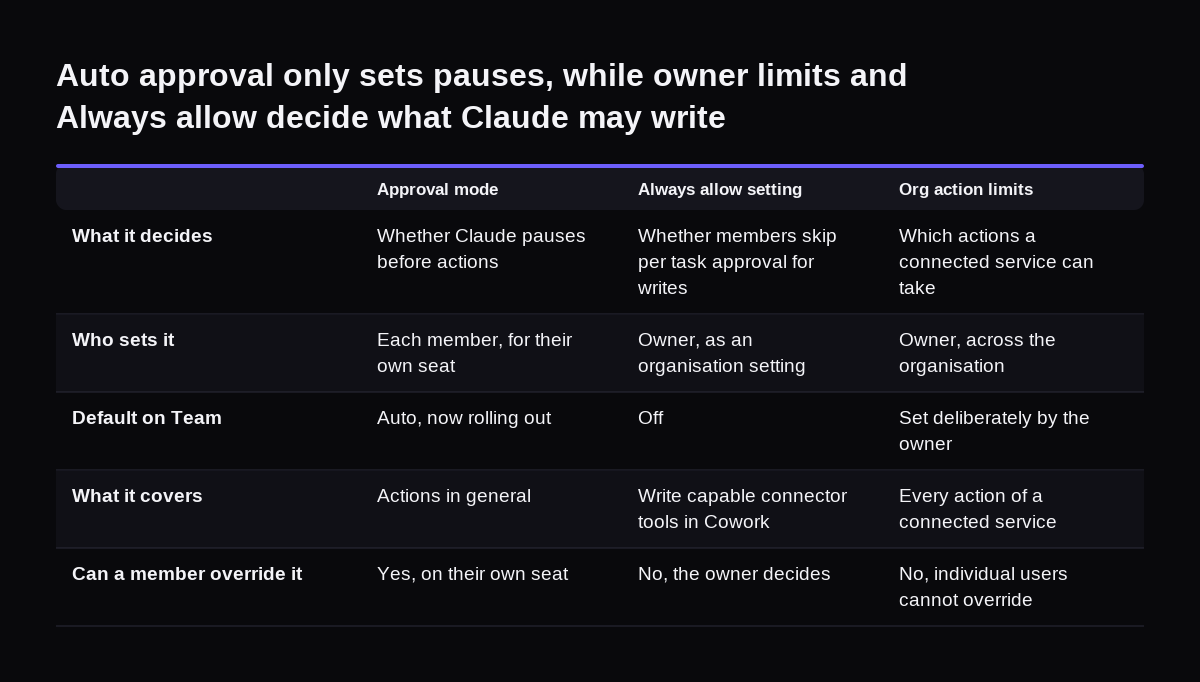
The Always allow setting for connector tools is separate from the Auto and Manual choice. It is an organisation setting on Team and Enterprise plans. The Help Center page on Cowork for Team and Enterprise plans says it controls whether members can skip per-task approval for write-capable connector tools in Cowork. It is off by default.

Keep the two controls apart in your head:

  • The approval mode decides whether Claude pauses before actions in general.
  • The Always allow setting decides whether members may waive the per-task prompt for tools that write to connected systems.

A member can therefore run in Auto and still be asked before Claude writes through a connector. That combination is the safest everyday setup for a Team plan. Drafting stays fast and record changes still pause.

Leave the Always allow setting off until you have a reason to change it. Turning it on is an organisation-wide decision about every write-capable tool any member might approve. It is not a choice about one agent.

Treat it like giving staff a standing authority to sign off their own changes. Some teams will earn that. Most should not have it on day one.

Auto approval only sets pauses, while owner limits and Always allow decide what Claude may write. Approval mode / Always allow setting / Org action limits. What it decides: Whether Claude pauses before actions / Whether members skip per task approval

Organisation-wide action limits and inherited permissions set the ceiling

Two controls sit above any approval mode: owner-set action limits and the permissions in the source system. Together they decide what Claude can possibly do, whoever clicks approve.

Owners on Team and Enterprise plans can limit which actions a connected service can take across the organisation. The Help Center article on connectors gives the example of allowing reads while blocking writes. Individual users cannot override this. Restricting actions in Claude never grants more access than the source system permits. It only narrows it.

Inherited permissions form the second ceiling. If someone cannot reach a file, channel or record in the source system, the connector cannot reach it from Claude either. That makes your existing role setup in Zoho Books or your CRM part of your AI governance.

Setup works in layers. On Team and Enterprise plans, an Owner or Primary Owner enables a connector for the organisation. Each person still has to authenticate individually before using it. Enterprise-managed auth, where a connector is authorised once for the whole organisation, is in beta. Connector requests, where members ask for new connectors, are on by default on Team plans and off by default on Enterprise.

Use the ceilings first. An action blocked at organisation level needs no approval prompt, because it cannot happen.

Decision table: which Claude actions get Auto approval and which stay manual

Sort every connector action by two questions. Does it change a record? Can you reverse it cleanly? The table below gives a starting setting for common actions in CRM, accounting and helpdesk agents.

ActionChanges a record?Easy to reverse?Starting setting
Read or search records, summarise a ticketNoNothing to reverseAuto, within an org-wide read-only limit
Draft a reply or document for a person to sendNoNothing to reverseAuto
Add an internal note or tagYes, lightlyYesManual first, then the first candidate for Auto
Reassign a ticket or change a statusYesUsuallyManual until the logs show it is right
Update a deal value, contact owner or priceYesPartly, and others may act on it firstManual
Send an email or reply to a customerYesNoManual
Create, post or void a financial entryYesNo, or only with a correcting entryManual, or blocked at organisation level
Delete records or filesYesNoBlocked at organisation level

Two rules sit behind the table. Anything that leaves the building, such as an email to a customer, stays manual. Anything that touches the books stays manual or blocked. Everything else moves to Auto only on evidence from the logs.

Worked example: a Zoho Desk triage agent moving from manual to Auto

Take a support team that wants Claude to triage tickets in Zoho Desk. The company is on Claude Team. It connects Zoho Desk through a custom connector to a remote MCP server. That server must be reachable over the public internet, because custom connectors connect from Anthropic's cloud rather than from your device.

  1. Set the ceiling. The owner limits the connector's actions to reads across the organisation. Claude can read and summarise tickets but cannot change them.
  2. Check the Always allow setting. It stays off, its default.
  3. Run in Manual. The support agents switch their own seats to Manual. Claude proposes a category and a team for each ticket. A person agrees or corrects it in the queue.
  4. Open one write action. When the suggestions are reliably right, the owner allows the "add internal note" action. Claude still asks each time before writing the note.
  5. Grant Auto for that action. After the logs show the notes are accurate, the team moves that one step to Auto. Reassignment opens next, under the same pattern.

Customer replies never leave Manual in this setup. A person reads every reply before it goes out.

At Svennis we set agents up this way at clients. Writes start blocked at organisation level and reads start open. We then lift one write action at a time, only after the logs for the previous action show no surprises. The point is that each widening is a decision backed by evidence, not a default somebody forgot to change.

Reading the logs before you grant Auto approval

Auto approval should follow evidence, and the evidence comes from logs. Claude Team and Enterprise give owners three relevant sources. Each has a limit.

OpenTelemetry streaming

Team and Enterprise owners can stream Cowork events to SIEM and observability tools through OpenTelemetry. A SIEM is the security system that collects and searches event logs. Anthropic notes that this stream does not replace audit logging for compliance purposes.

The Compliance API

The Compliance API returns sessions from the most recent 30 days. Review on a rhythm shorter than that, or export what you need. Otherwise the evidence for a decision may have aged out.

Local session history

Cowork sessions on Team and Enterprise run either in the cloud on Anthropic's infrastructure or locally on the user's computer. For local sessions, conversation history sits on staff machines. It falls outside Anthropic's standard data retention policies, and admins cannot centrally manage or delete it. For an agent that writes to business systems, prefer setups you can review centrally.

Before moving an action to Auto, ask three questions of its logs. Did Claude choose the right record and write the right value? Did a person ever have to undo it? If you cannot answer all three, the action stays manual.

Which teams keep manual approval: a simple rule

A team keeps manual approval when its mistakes cost money, reach a customer or cannot be reversed. That single test covers most cases.

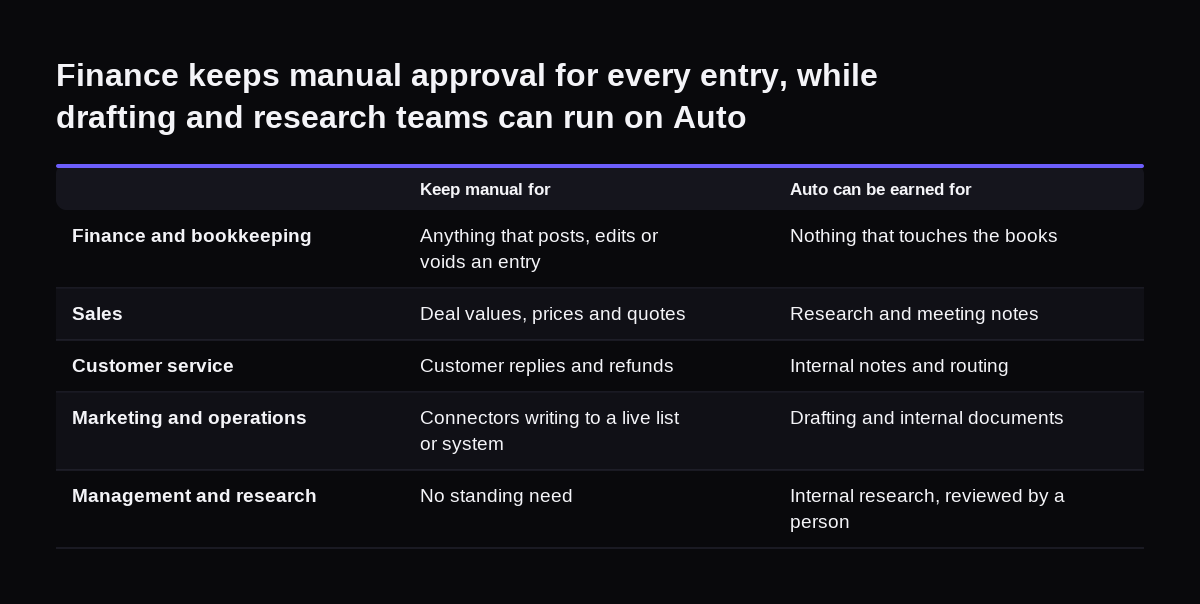
Applied to a typical small or mid-sized company, the rule sorts teams like this:

  • Finance and bookkeeping: manual, always, for anything that posts, edits or voids an entry.
  • Sales: manual for deal values, prices and quotes. Auto is fine for research and meeting notes.
  • Customer service: manual for customer replies and refunds. Auto can be earned for internal notes and routing.
  • Marketing and operations: Auto for drafting and internal documents. Manual where a connector writes to a live list or system.
  • Management and internal research: Auto, since the output is read before anyone acts on it.

The rule follows the action, not the person's seniority. A director who updates prices through Claude needs the same pause as anyone else. The rule should also be written down. Put it in the same document as your connector list, so a new owner or admin can see why each setting is what it is.

If you are building a dedicated agent rather than equipping seats, the same logic applies. Our explainer on what an AI agent does for a business sets out how agents differ from chat use.

Finance keeps manual approval for every entry, while drafting and research teams can run on Auto. Keep manual for / Auto can be earned for. Finance and bookkeeping: Anything that posts, edits or voids an entry / Nothing that touches the books; Sales:

What this means for a UK company on Claude Team

For a UK company on Claude Team, the main point is that the faster defaults arrive switched on. Auto is rolling out as the Team default. Connector requests are on by default on Team. Running Cowork in the cloud is on by default for Team plans, and an owner can turn it off at any time. None of this needs a decision from you to take effect.

That is a reasonable starting point for drafting work. It is not a decision about who may change your customer, finance or support records. Your owner should set the organisation-wide connector limits deliberately and confirm the Always allow setting is off. Each team's approval mode should follow the rule in this guide.

Data location is a separate question from approval. Connected services process data on their own infrastructure. Settings that control where Claude's inference runs do not change where third-party services operate. Local Cowork history on staff laptops cannot be centrally deleted. Check those facts against your own data handling and record-keeping obligations before an agent goes near customer data.

If you use Claude in Chrome, remember the exception in the defaults. Even on Enterprise, the Cowork side panel in Chrome does not start in Manual. Our guide to Claude in Chrome for business covers its admin settings.

Next steps for setting approval defaults in Claude

You can set sensible approval defaults in an afternoon. Work through these steps in order:

  1. List every connector enabled in your organisation, and every action each one can take.
  2. Mark each action using the decision table: read, reversible write or irreversible write.
  3. Set organisation-wide limits so irreversible actions are blocked or need approval.
  4. Confirm the Always allow setting for write-capable connector tools is off.
  5. Move finance, sales pricing and customer-facing service seats to Manual.
  6. Connect Cowork events to your logging, and diary a review well inside the 30-day Compliance API window.
  7. Promote one action at a time to Auto, and write down why.

If you want an agent that writes to your systems built this way, a Pilot Claude A for one process is the usual start. It follows a Workshop. The department Activation and monthly operations come after it.

For each system, we build a connector, an MCP server, a plugin or a skill. We show you the options with their cost, and you choose. Costs for plans and setup are set out in our guide to what Claude for business costs and how to start.

Sources

  1. Claude Help Center: Use connectors to extend Claude's capabilities
  2. Claude Help Center: Claude Cowork and chat are one Claude
  3. Claude Help Center: Use Claude Cowork on Team and Enterprise plans
Free, 30 minutes

Pick a time. Bring the process this article made you think of.

You leave with a clear yes or no on putting Claude on it, and the step that fits from our published prices. You speak to someone who builds the agents, not a salesperson.

Prefer to call? +44 7588 772736 · Not ready to talk? See it on your business first.

30 minutes · video call · free
  1. 1Time
  2. 2Details
  3. 3Booked